Account and settings
Troubleshooting
Fixes for a forgotten password, a catch that seems missing, a lost apparition, coins that differ between two devices, and how to reach support.
- Available on iPhone and Android
Most problems with Catch the Ghost come down to one of five things: a password you cannot remember, a catch you cannot find, an apparition that got away, two devices showing different balances, or a question only support can answer. Each section below starts with the short answer, then the steps.
What do I do if I forgot my password?
Tap Forgot password on the Sign In sheet, enter the email address you signed up with, and the app sends you a code to reset your password. The email must be the same one you used during sign up, so check any other addresses you own if no code arrives.
- On the welcome screen or the Create your account screen, tap Sign In.
- Choose Continue with Email.
- Tap Forgot password under the password field.
- Enter your email address and tap Send code, which stays dimmed until the field has an address.
- Enter the code from your email and follow the prompts to set a new password.
If you signed up with Apple or Google, there is no password to reset. Sign in with the same button you used to create the account.

Why doesn’t my catch show up everywhere?
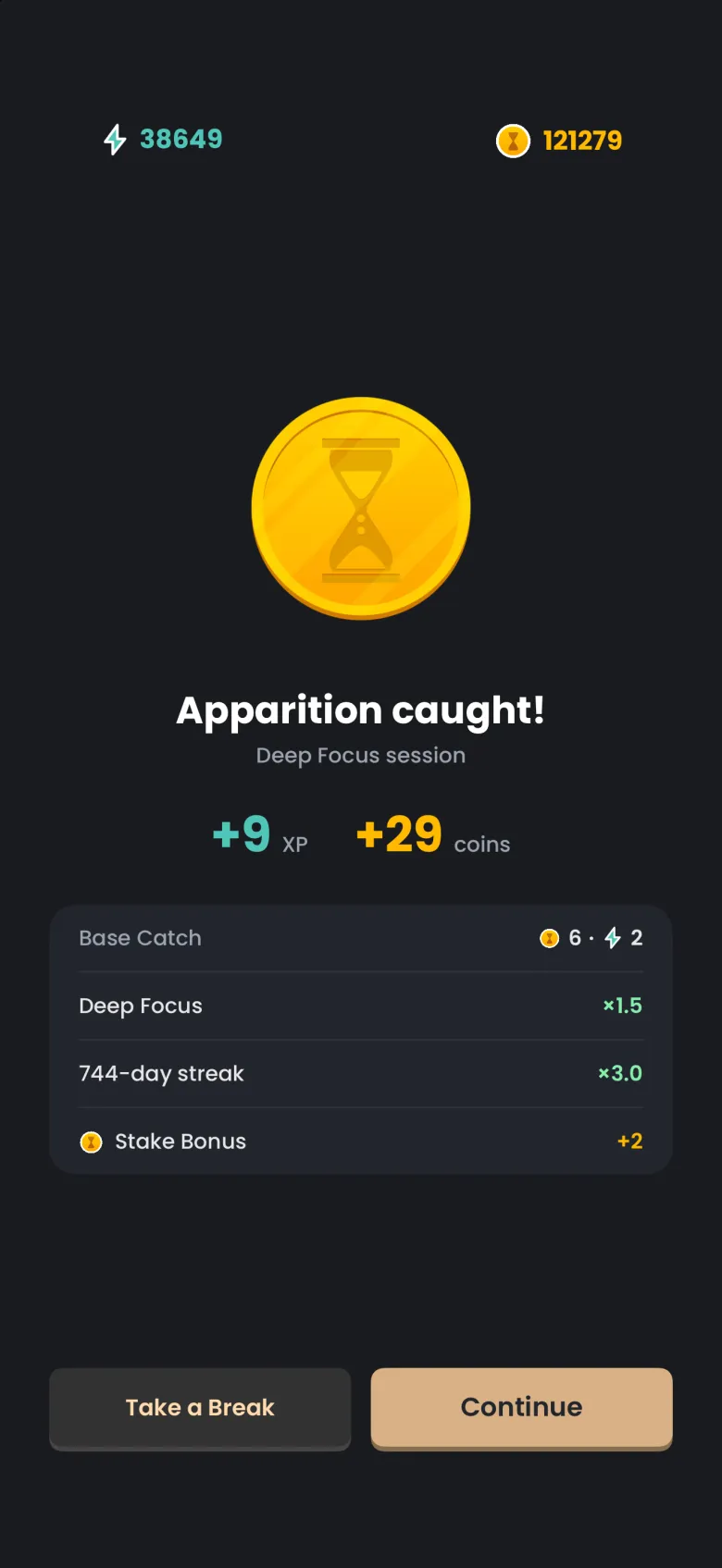
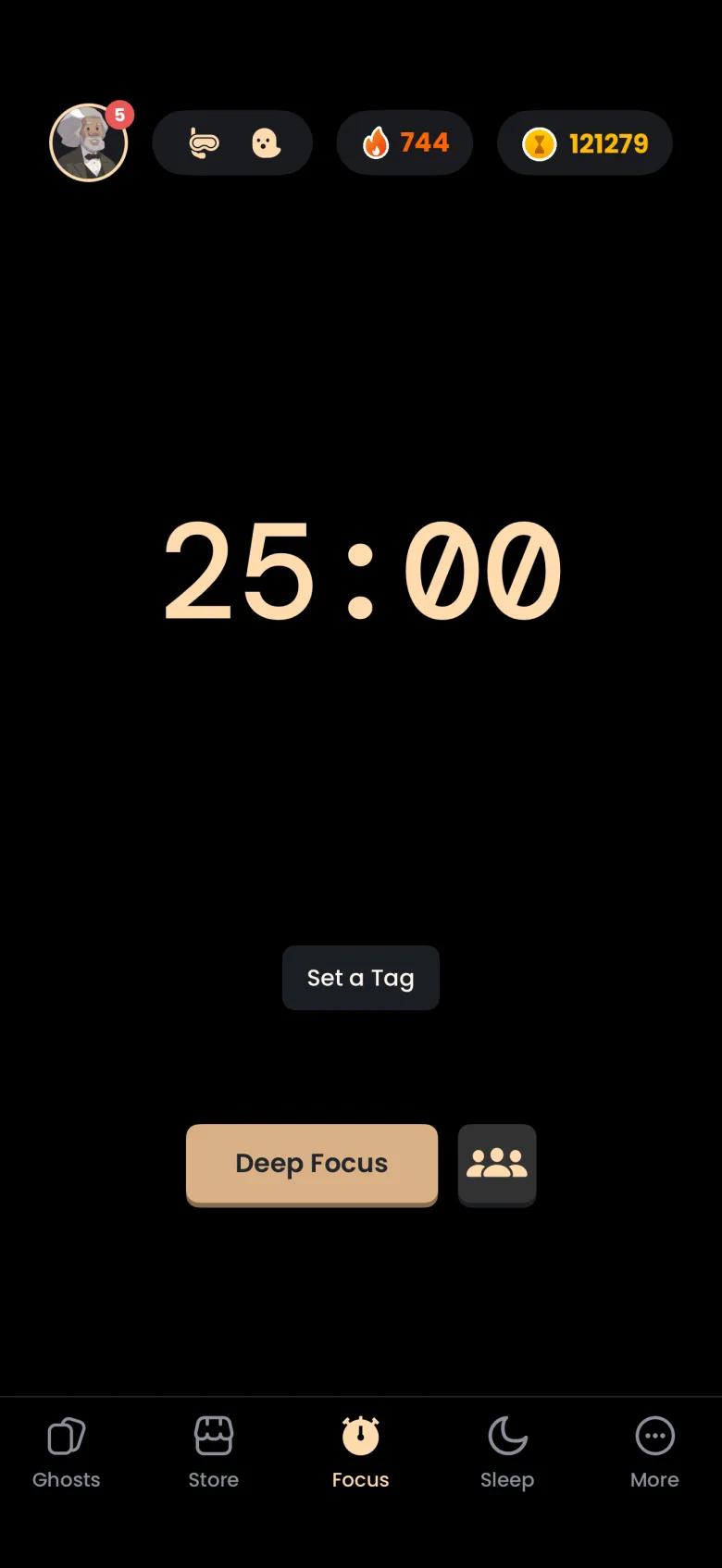
A caught apparition appears in several places, and each one updates as soon as you leave the rewards screen. If one looks behind, close the app and open it again, and pull down on screens that support it, such as the Leaderboard and the Store. Check the places below in order.
- The rewards screen, which lists exactly what the catch added to your XP and coins.
- The Focus tab header, where your coin balance updates when you leave the rewards screen.
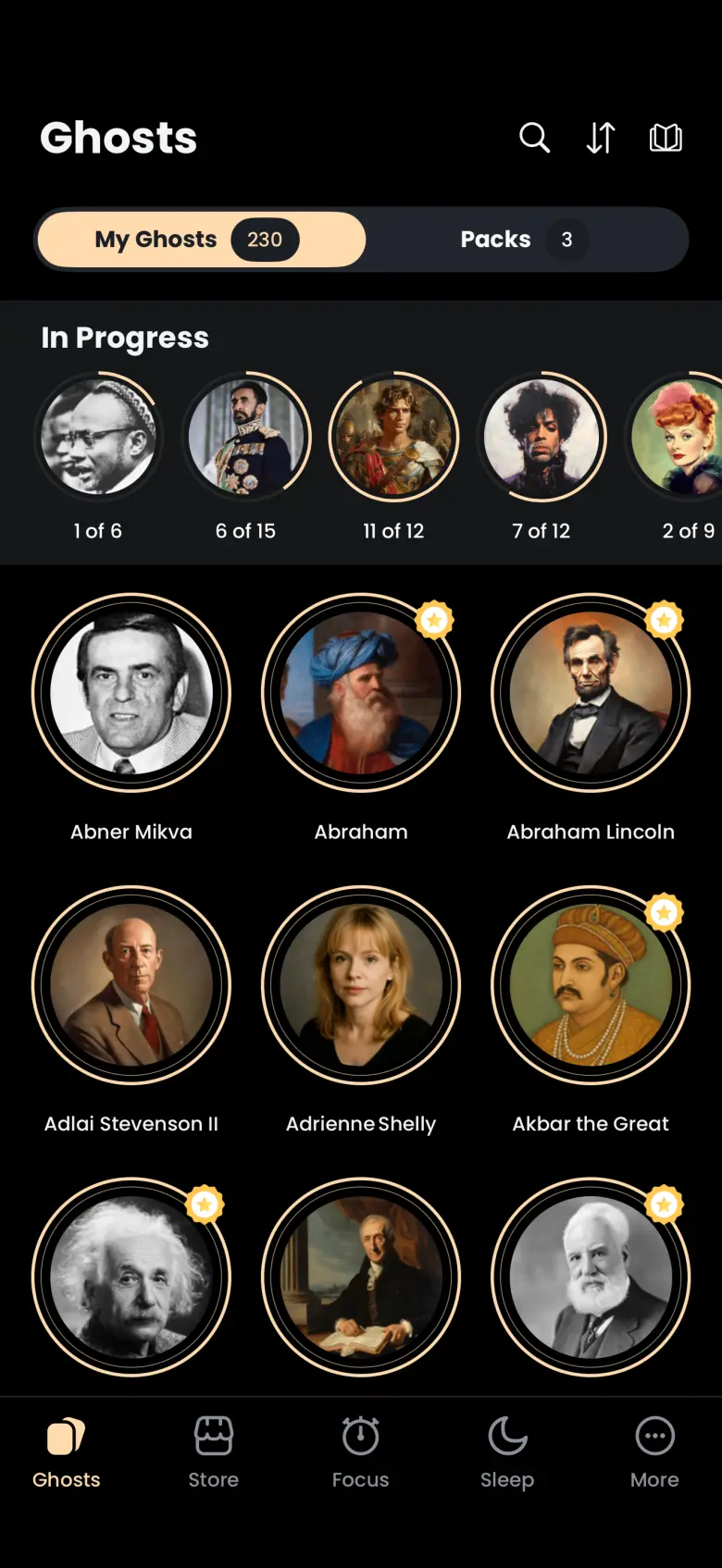
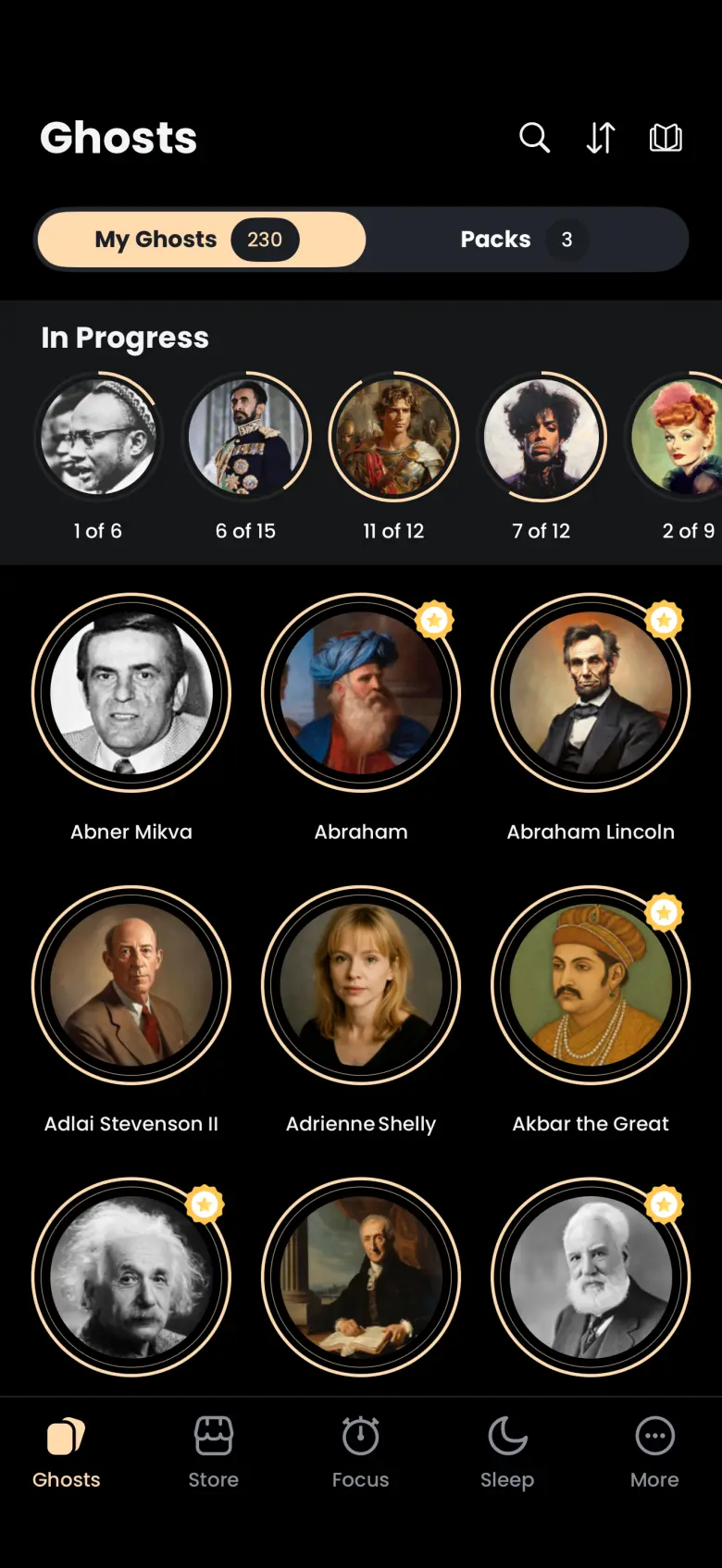
- The Ghosts tab, where the In Progress row shows each ghost as caught chapters out of total chapters. A ghost you were already partway through goes up by one. If the apparition belonged to a ghost you had not started, that ghost joins the row at the front, shown as 1 of 6 in the example below.
- History, where today’s Focus Sessions count goes up by one. View all lists each session with the apparition you caught.
History’s Ghosts completed tile counts ghosts you finished, not single apparitions, so a day of catches that did not finish a ghost can show 0 there. Your streak does not rise for a second catch on a day that already counted.
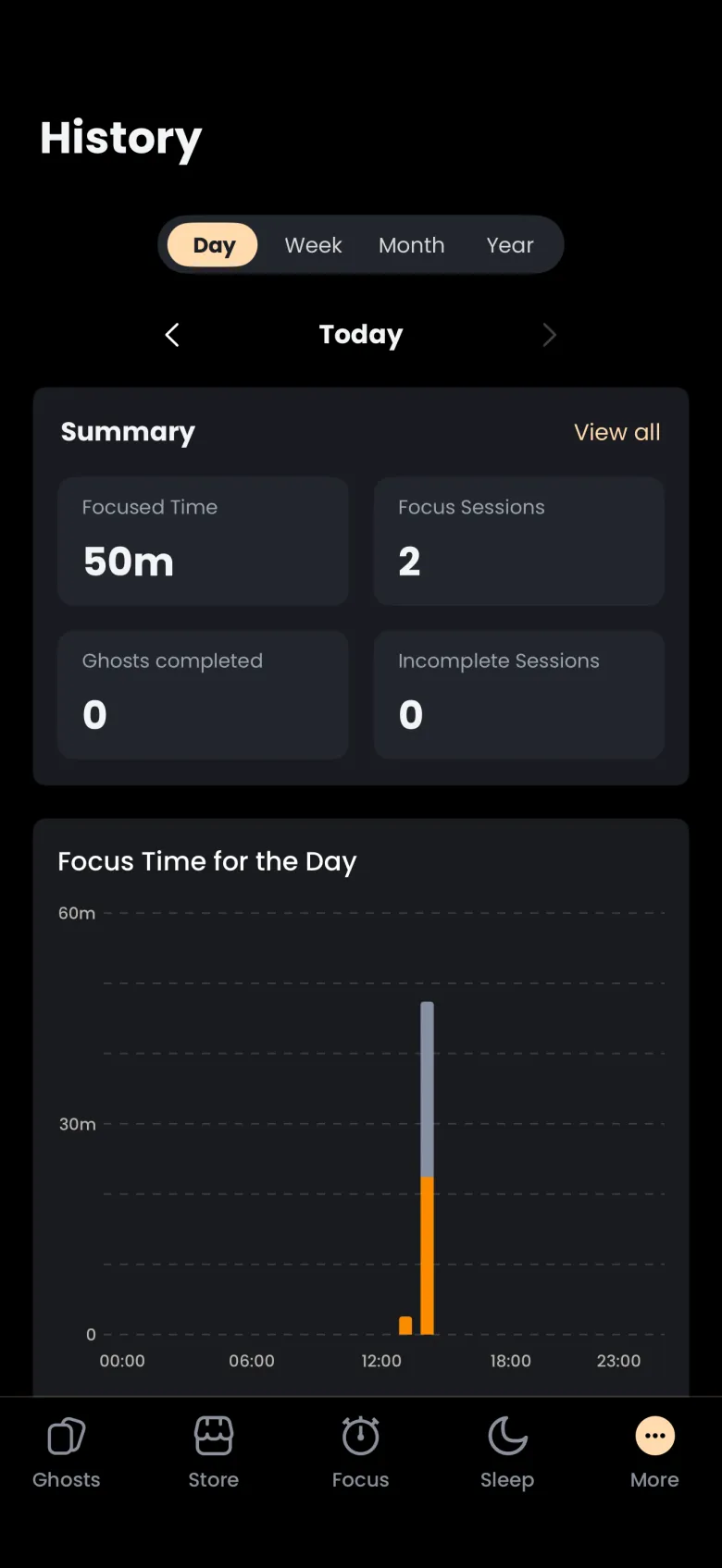
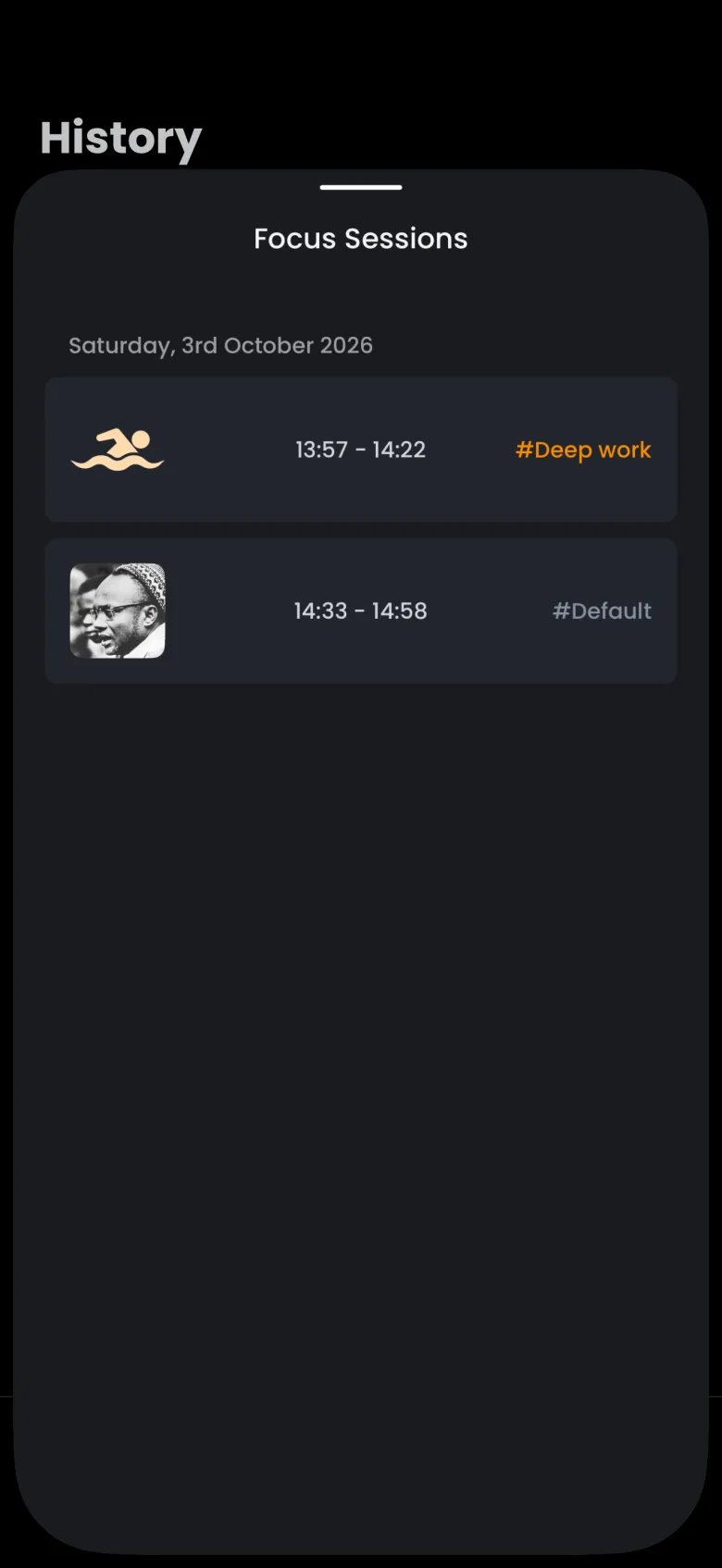
History is a Pro feature. The History article explains what it shows.
I lost an apparition. Is the ghost gone?
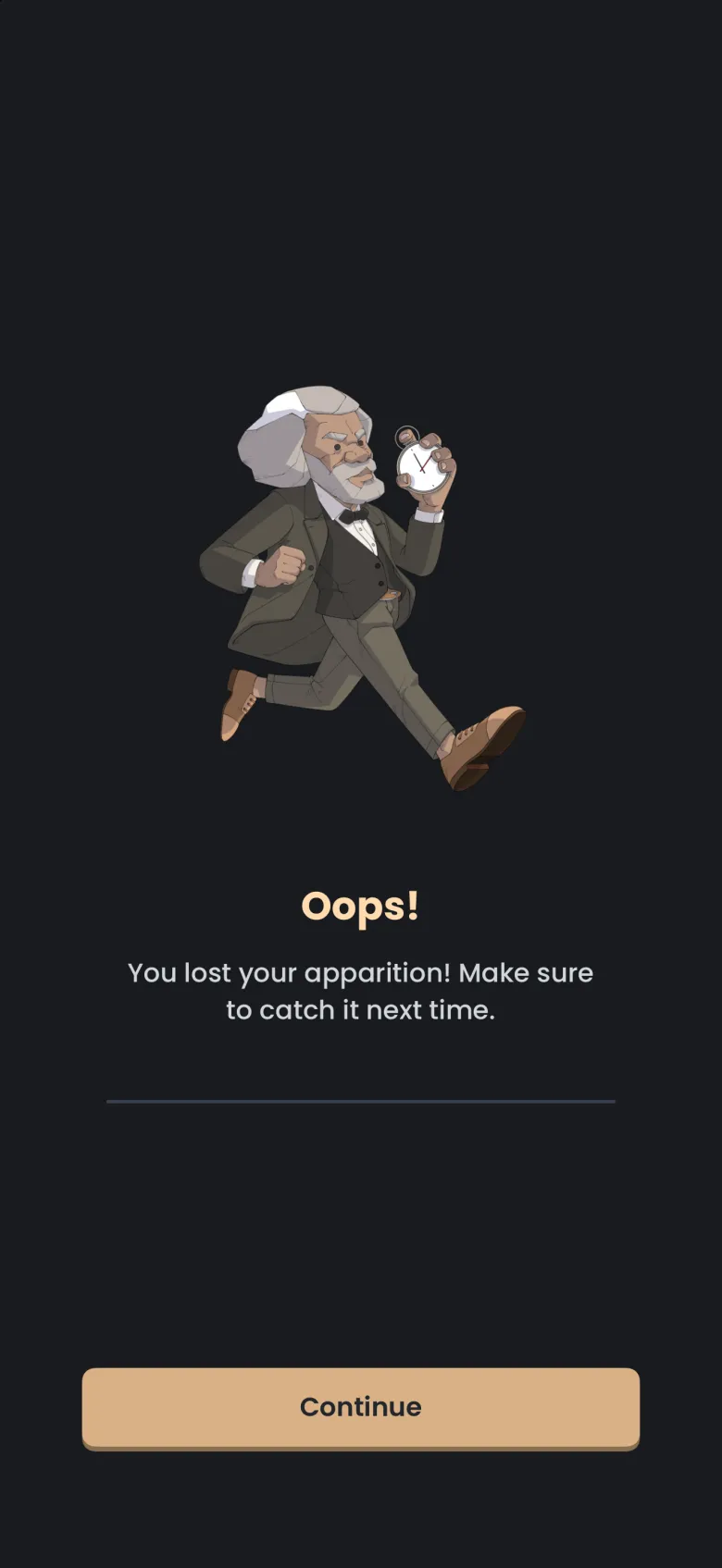
No. A lost apparition is the one you were about to catch getting away, and the ghost it belongs to stays in In Progress with the same chapter count, ready for your next session. The app tells you with an Oops screen that reads You lost your apparition.
You lose an apparition when you stop the timer, or when you leave the app for longer than your grace allows. Deep Focus gives you one free minute of grace, up to three times in a session. Until your third catch, the only way to lose an apparition is to stop the timer on purpose. If you staked coins, you forfeit only the coins you staked; without a stake, your coin balance does not change. Shallow Focus catches nothing, so there is nothing to lose there. The stakes and grace periods article has the full rules.
My coins differ between two devices. What should I do?
One account works on every device you sign in to, and a device refreshes its balances from your account when the app opens. If you finished a session or spent coins on one device and another still shows the old total, close the app on the second device and open it again. The refresh runs shortly after launch and each time you return to the app, at most about once a minute, and it waits for any changes still sending from that device.
- Make sure the second device is signed in to the same account.
- Close the app fully, then open it again.
- Wait a few seconds on the Focus tab for the balance in the header to update.
Your ghosts and streak are kept on your account too, so they follow you between devices. Sign in with the provider you used to create the account. Sign in with Apple is available on iPhone only, so an account created with Apple is easiest to reach from an iPhone.
How do I contact support?
Open Settings and choose Contact Support. The row opens a message addressed to support, already filled in with your app and device details, so you can describe the problem in your own words. It needs a mail app set up on your phone. Before you write, the Help Center and FAQ rows next to it in Settings may already have your answer.
- Tap More, then Profile, then the gear.
- Tap Contact Support, Help Center or FAQ.
- In the message, say what you expected and what you saw, and name the screen.