Getting started
Choose your guide
Your guide is the historical figure who cheers you on through every session. Pick one during setup and switch any time from your Profile.
- Available on iPhone and Android
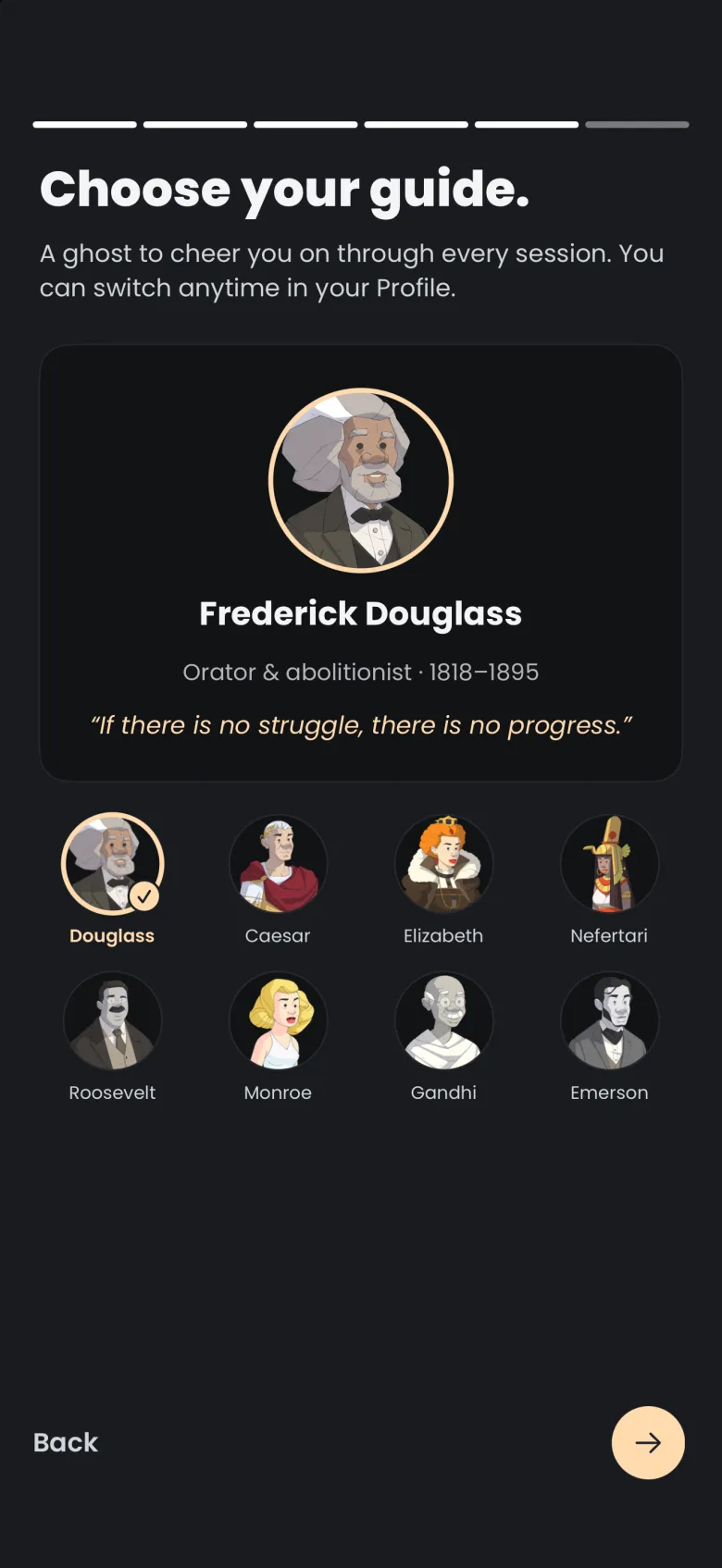
A guide is a ghost who keeps you company in the app. You choose one on the fifth setup screen, before you create your account, and you can change your choice whenever you like from your Profile. The picker currently offers eight guides.
What is a guide?
A guide is the companion ghost whose portrait follows you around the app. It is separate from the ghosts you catch, because you choose your guide rather than collect one. The setup screen describes the idea in one line, a ghost to cheer you on through every session.
Your guide shows up in the top left of the Focus tab as a small portrait. Tapping it opens a sheet with your guide’s name, your daily goal progress, and your in-app notifications, which the notifications article describes. If you lose an apparition, your guide is also the figure running with a stopwatch on the screen that tells you so.
Which guides can I pick?
The picker shows a large card for the guide you have selected, above a grid of every guide. At the time of writing the grid holds eight: Douglass, Caesar, Elizabeth, Nefertari, Roosevelt, Monroe, Gandhi and Emerson. The roster is delivered from our servers, so it can grow without an app update. Frederick Douglass is selected before you touch anything.
Each card names the guide, gives a role and their years, and quotes a line from them. Douglass appears as an orator and abolitionist, 1818 to 1895.
How do I choose a guide during setup?
Tap a portrait in the grid and the large card switches to that guide, with a gold ring and a check on the portrait you selected. When you are happy, press the round arrow at the bottom right to continue to the account screen. Your pick is saved and applied once your account is ready.
- Reach the Choose your guide screen during setup.
- Tap the portrait of the guide you want.
- Read the card to confirm it is the one, then tap the arrow.
How do I change my guide later?
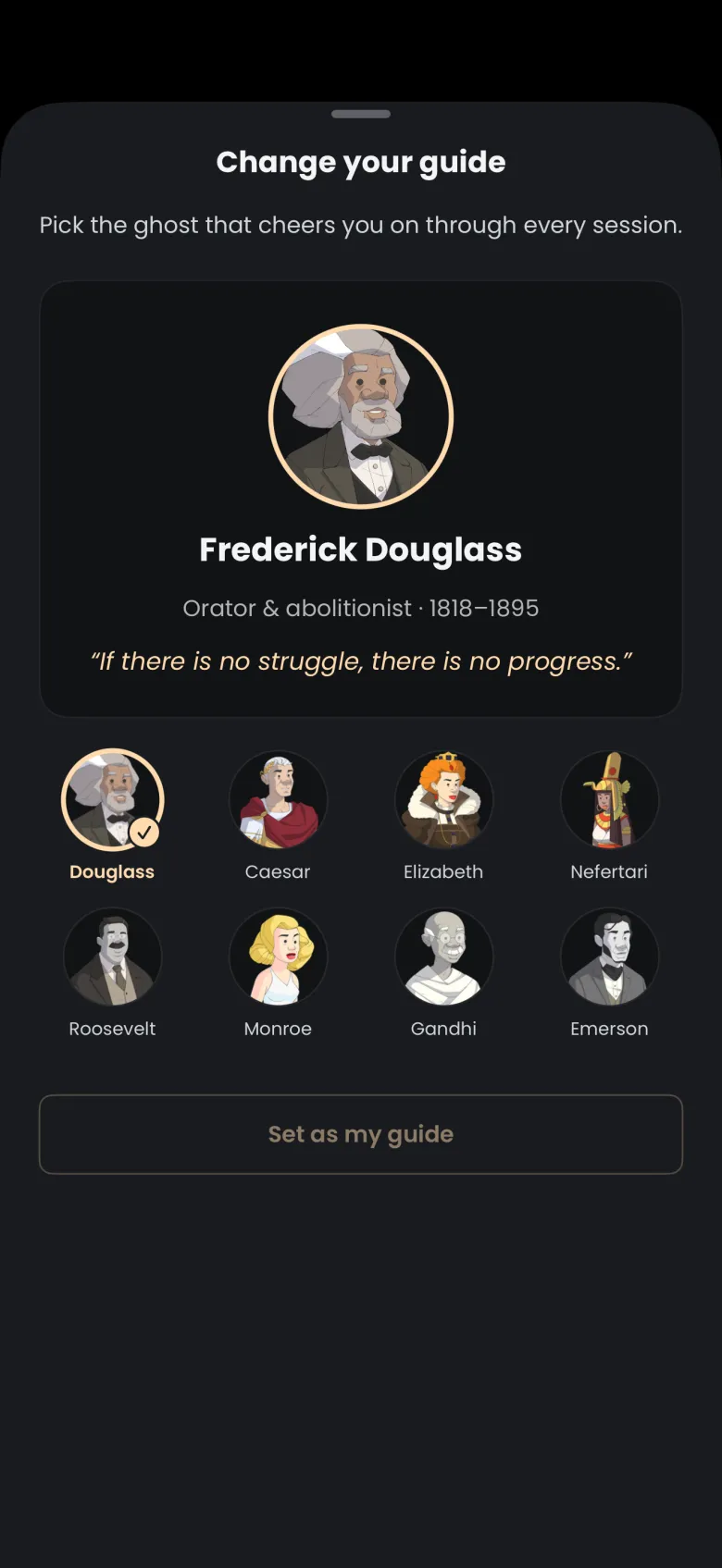
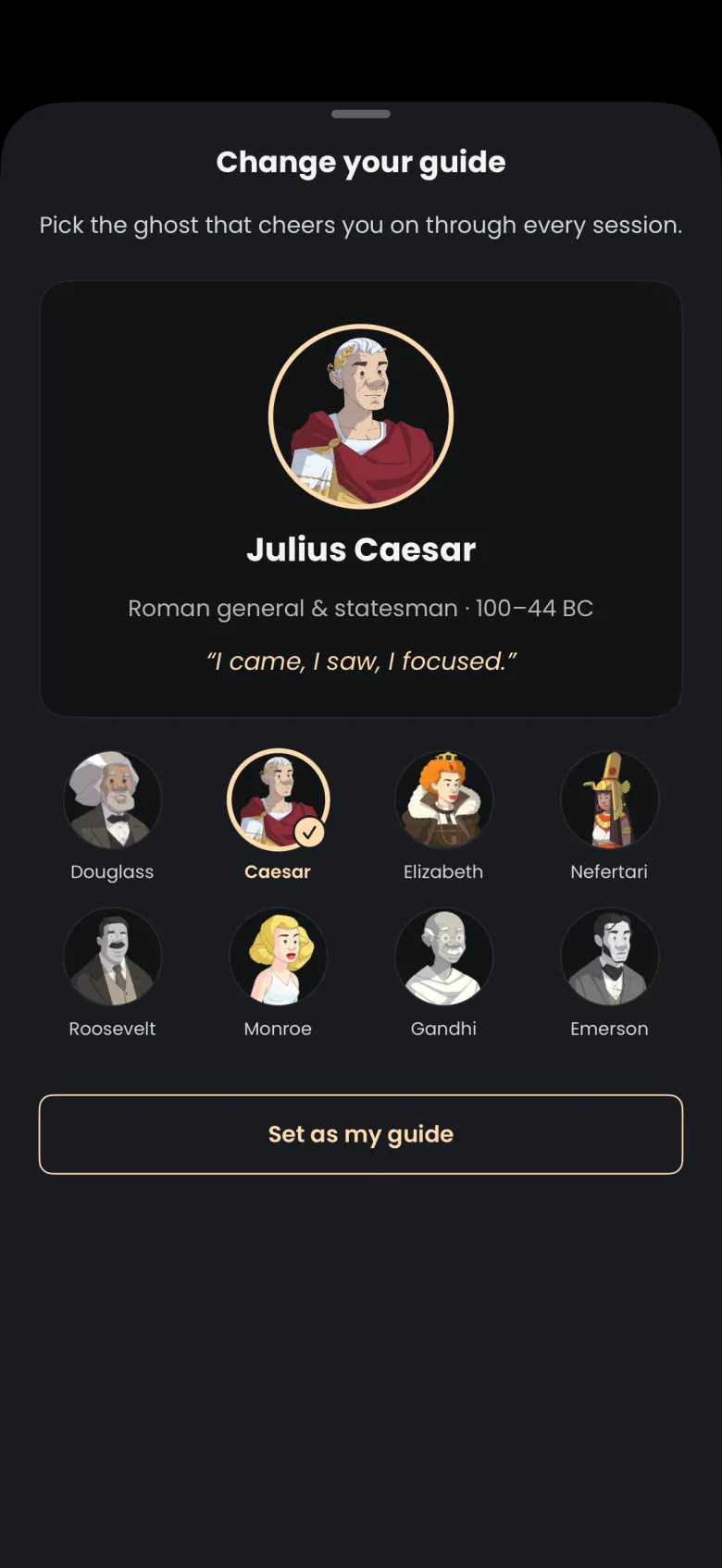
Open your Profile and choose Choose your Guide. The Profile screen is under the More tab at the right of the tab bar. The Change your guide sheet opens with your current guide on the large card and the same grid below.
- Tap More, then Profile.
- Tap Choose your Guide.
- Tap a different portrait. The card switches, and Set as my guide, which was dimmed, becomes active.
- Tap Set as my guide to confirm.
The sheet has no close button, so drag it down from its top edge to leave without changing anything. Previewing a portrait changes nothing until you tap Set as my guide.