Account and settings
Notifications
Catch the Ghost asks once for permission to send a daily reminder. You can change the reminder, push and email settings, and read your in-app notifications at any time.
- Available on iPhone and Android
The app asks about notifications once, during setup, and only if you leave the daily reminder switched on. You can change the reminder from your Profile, change push and email notifications from Settings, and read in-app notifications from your guide’s sheet on the Focus tab.
When does the app ask to send notifications?
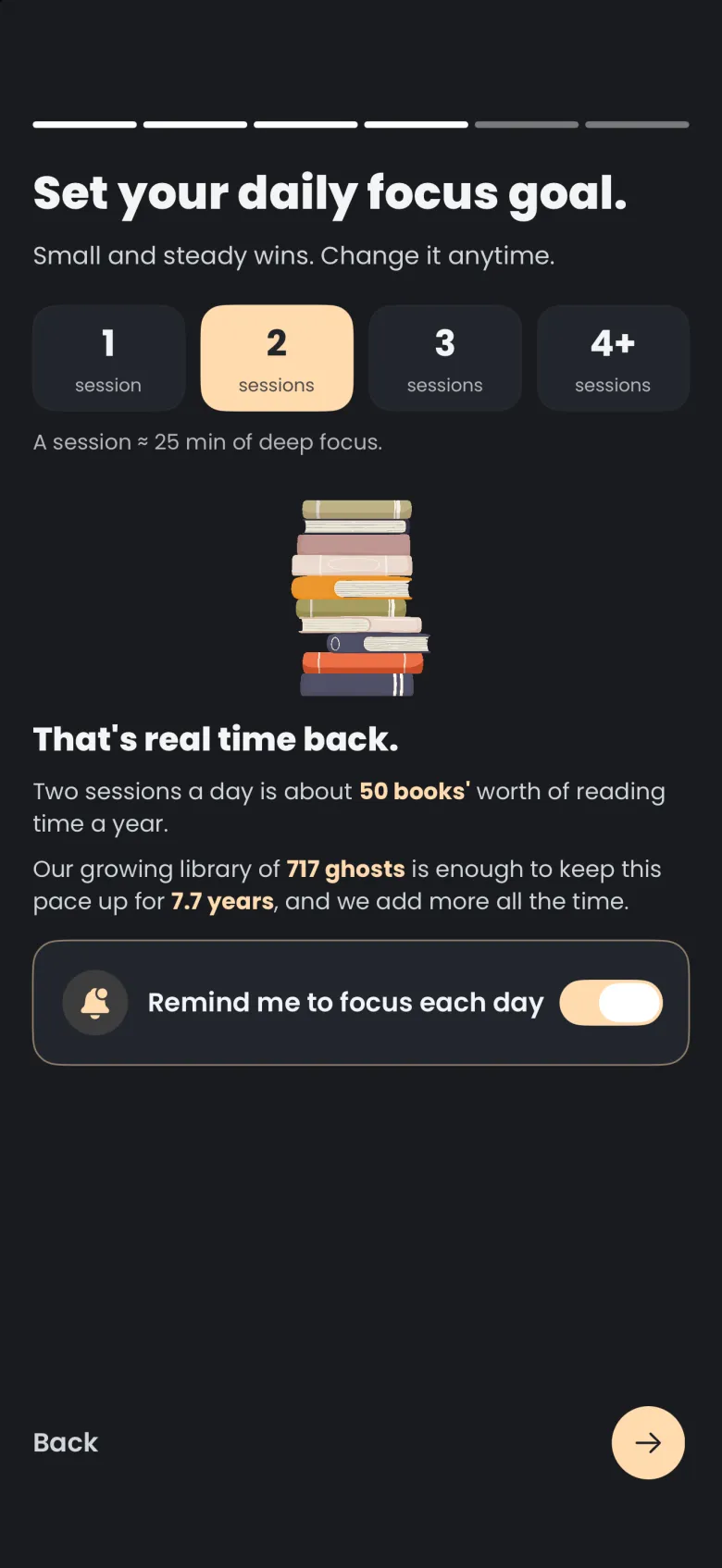
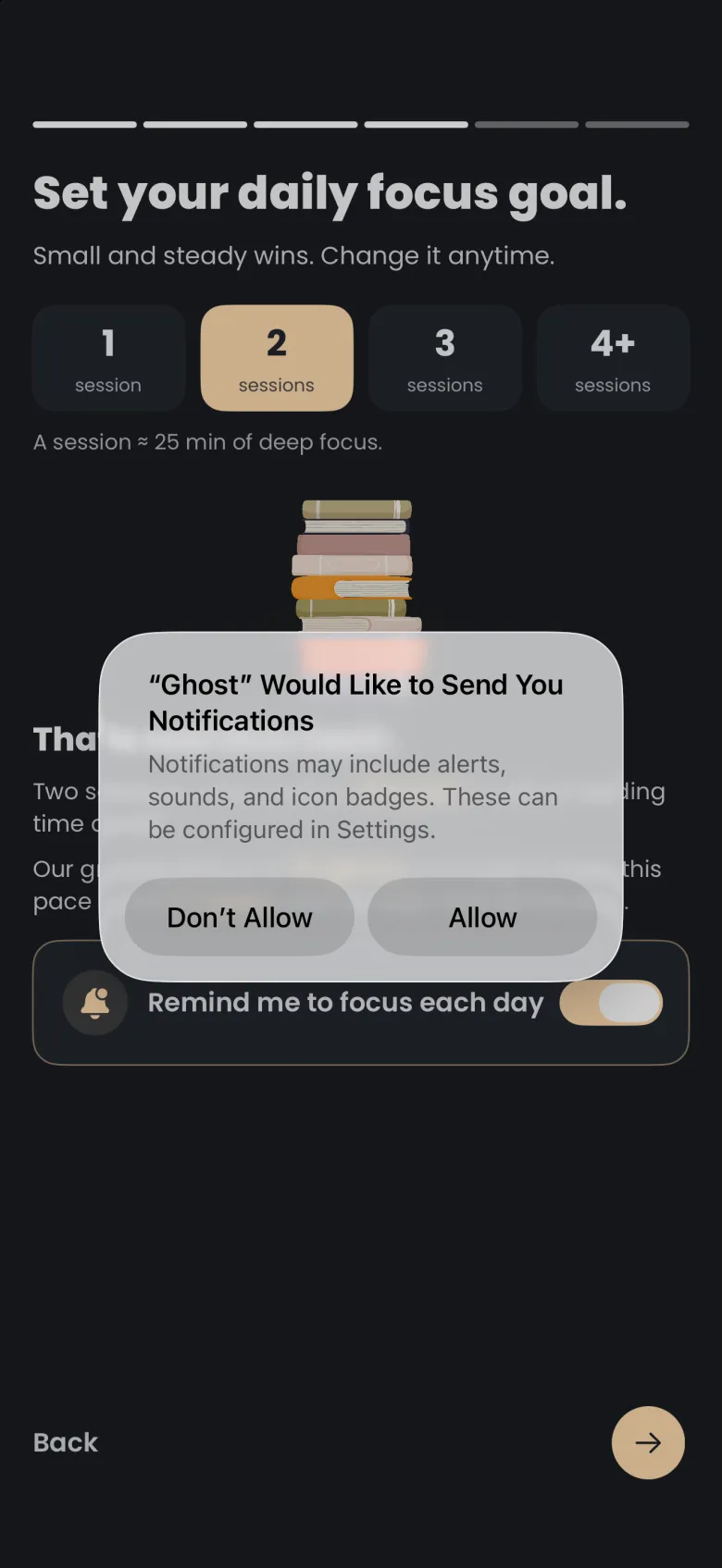
On iPhone, the permission prompt appears once, when you tap the arrow on the Set your daily focus goal screen with the reminder switch on. It does not appear when the screen opens, and it does not appear again unless you reinstall the app. The switch is on by default, so most people see the prompt at that moment.
If you choose Allow, setup moves on to choosing your guide. If you choose Don’t Allow, the reminder switch turns itself off and setup moves on all the same. On Android 13 and later the system shows its own permission dialog at the same point in setup.
The first time you start a Deep Focus session, iPhone may also ask whether to allow Live Activities. That is a separate permission, and it controls the countdown on your lock screen rather than reminders.
How do I change my daily reminder?
Open your Profile, tap Daily Focus Goal, and use the Remind me to focus each day switch. The reminder goes with your daily goal, so the same sheet that sets how many sessions you want each day controls whether the app nudges you. Tap Save goal to keep your change.
- Tap More, then Profile.
- Tap Daily Focus Goal.
- Switch Remind me to focus each day on or off, and change your session count if you like.
- Tap Save goal.
If you declined permission in setup and now want reminders, switch the reminder on here and also allow notifications for the app in your phone’s system settings, as the next section describes.
How do I manage push and email notifications?
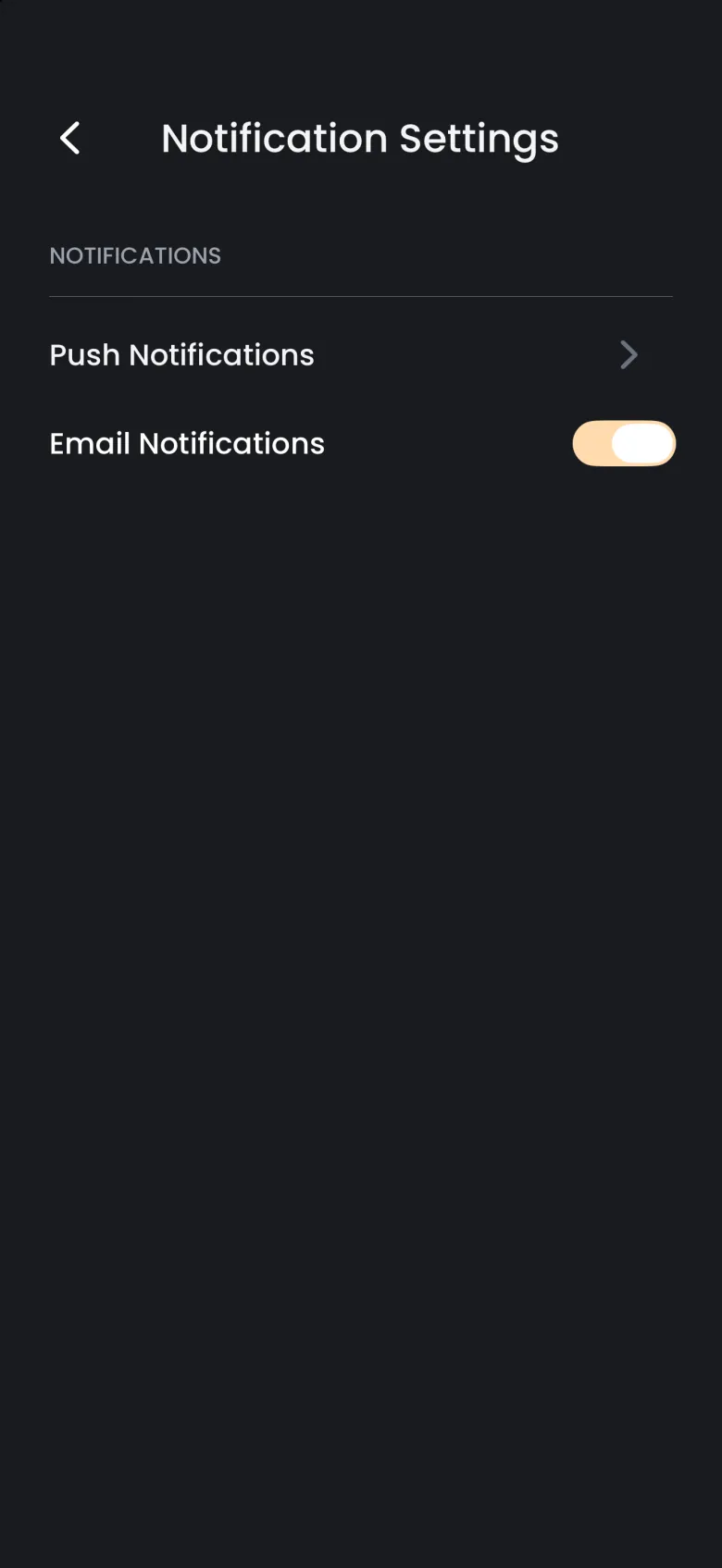
Open Settings, then Notifications. The screen has two controls: a Push Notifications row and an Email Notifications switch, which is on by default. Switch email notifications off to stop messages to your account email.
The Push Notifications row opens your phone’s system settings for the app, because that is where your phone keeps the allow and block decision. On Android it opens the app’s own notification page. Use it to allow notifications after tapping Don’t Allow, or to switch them off.
What are in-app notifications?
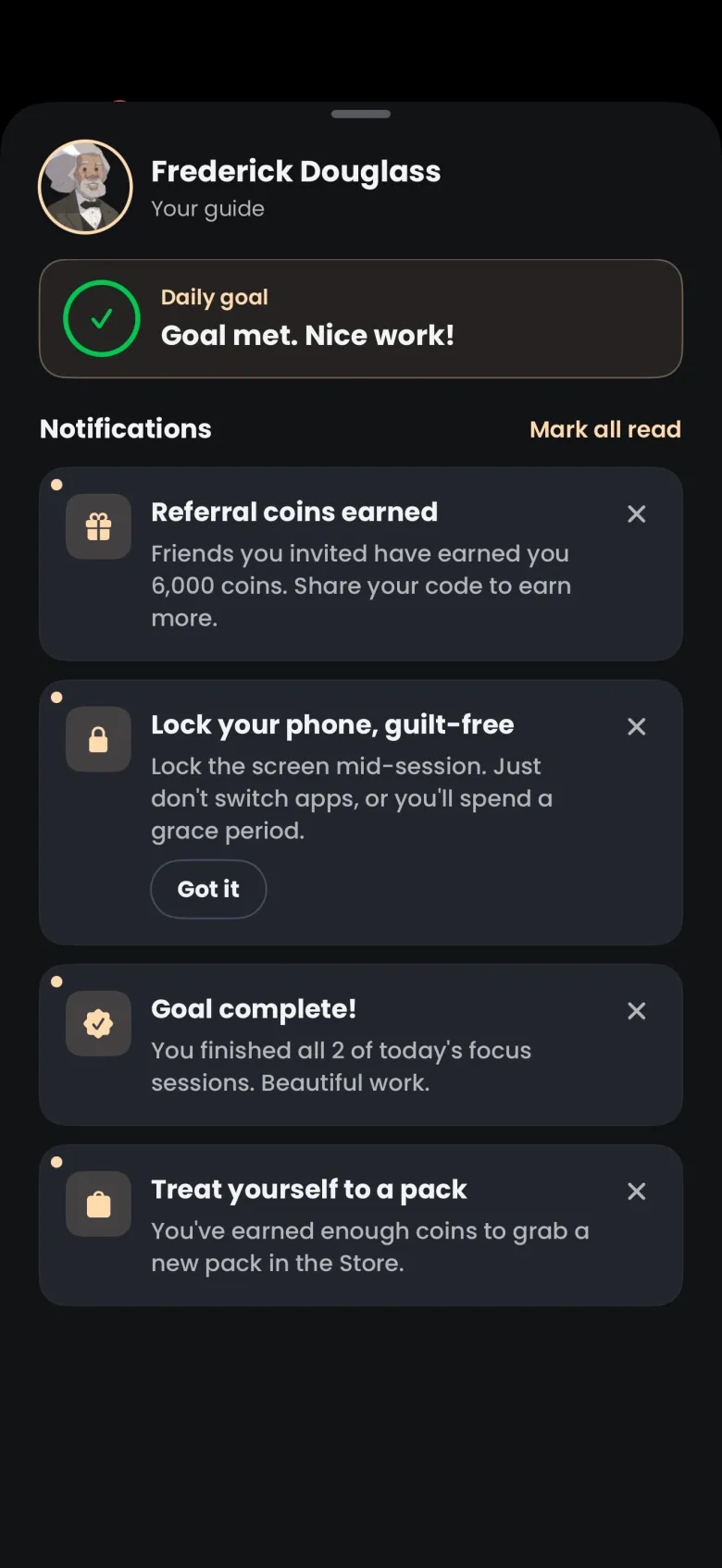
In-app notifications are cards your guide keeps for you, and you read them without leaving the app. Tap your guide’s portrait at the top left of the Focus tab to open the guide sheet. It shows your guide’s name, a Daily goal card that tells you how many of today’s sessions you have finished, and a Notifications list.
The cards cover things such as coins earned from friends you invited, a tip about locking your phone during a session, a goal you have reached, and a nudge when you have enough coins for a Store pack. Tap the X on a card to dismiss it, or Mark all read to clear the new markers. Use Got it on a tip when you have read it.
Why am I not getting reminders?
Almost always one of three switches is off: the permission, the daily reminder, or your phone’s own notification setting for the app. Check them in that order.
- Confirm Remind me to focus each day is on in Profile, under Daily Focus Goal.
- Open Settings, then Notifications, then Push Notifications, and make sure notifications are allowed for the app.
- Check that your phone is not silencing the app through a Focus mode or Do Not Disturb.
If you still hear nothing, the troubleshooting article lists how to reach support.