Focus sessions
Tags for your focus sessions
Tags label a focus session with a name and one of 15 colors, such as Writing or Study. You create and choose them from the Focus tab, and rename or recolor them later from your Profile.
- Available on iPhone and Android
What are tags?
A tag is a short label you attach to a focus session so you can tell later what the time was for. Each tag has a name and one of 15 colors. Tags are free on iPhone and Android, and you can use them with Deep Focus and Shallow Focus alike.
How do I create a tag and use it on a session?
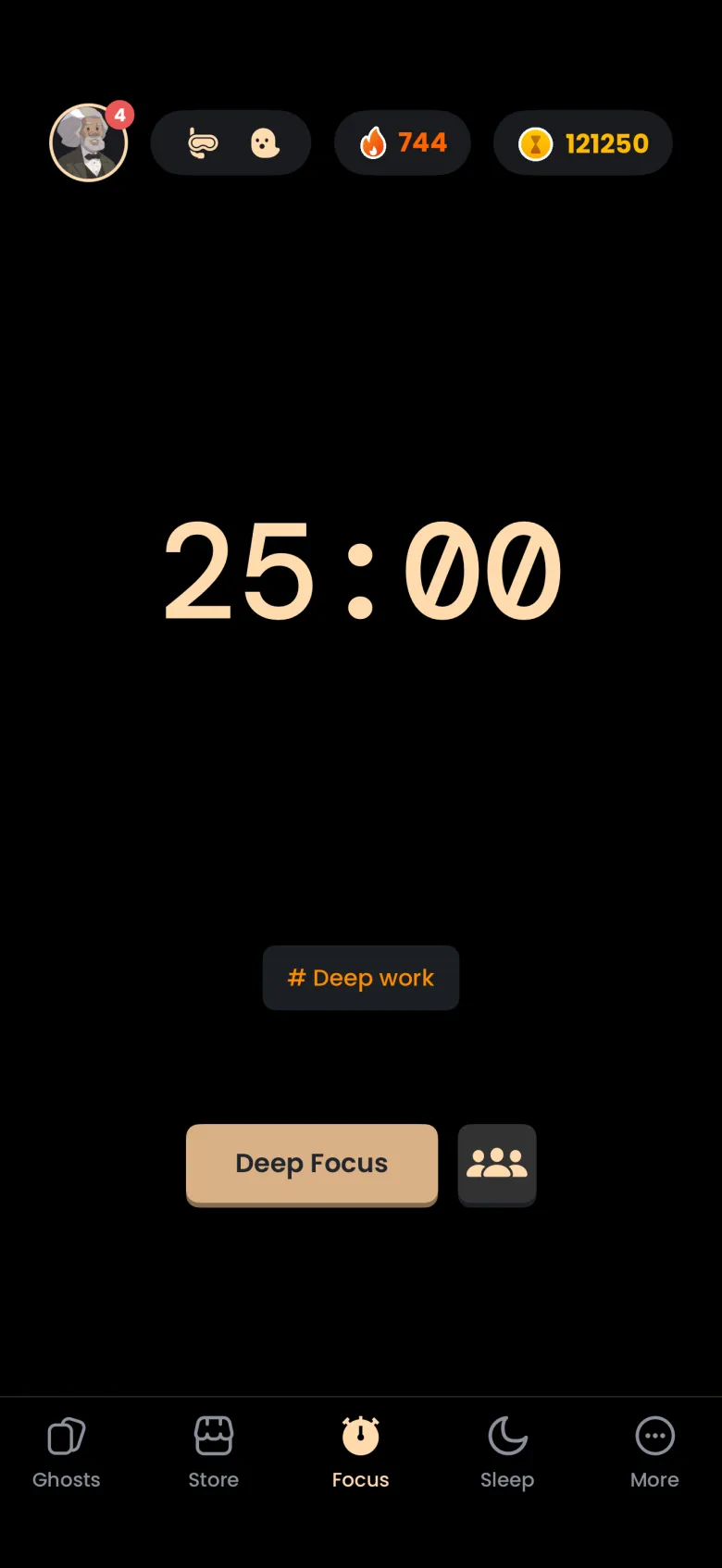
Create a tag from the Focus tab, before you start. Tap Set a Tag under the timer, then the plus at the top left of the sheet that opens. The tag you save is chosen for your next session straight away, and the button under the timer changes to show it.
- On the Focus tab, tap Set a Tag. The Select Tag sheet lists your tags, with a plus at the top left.
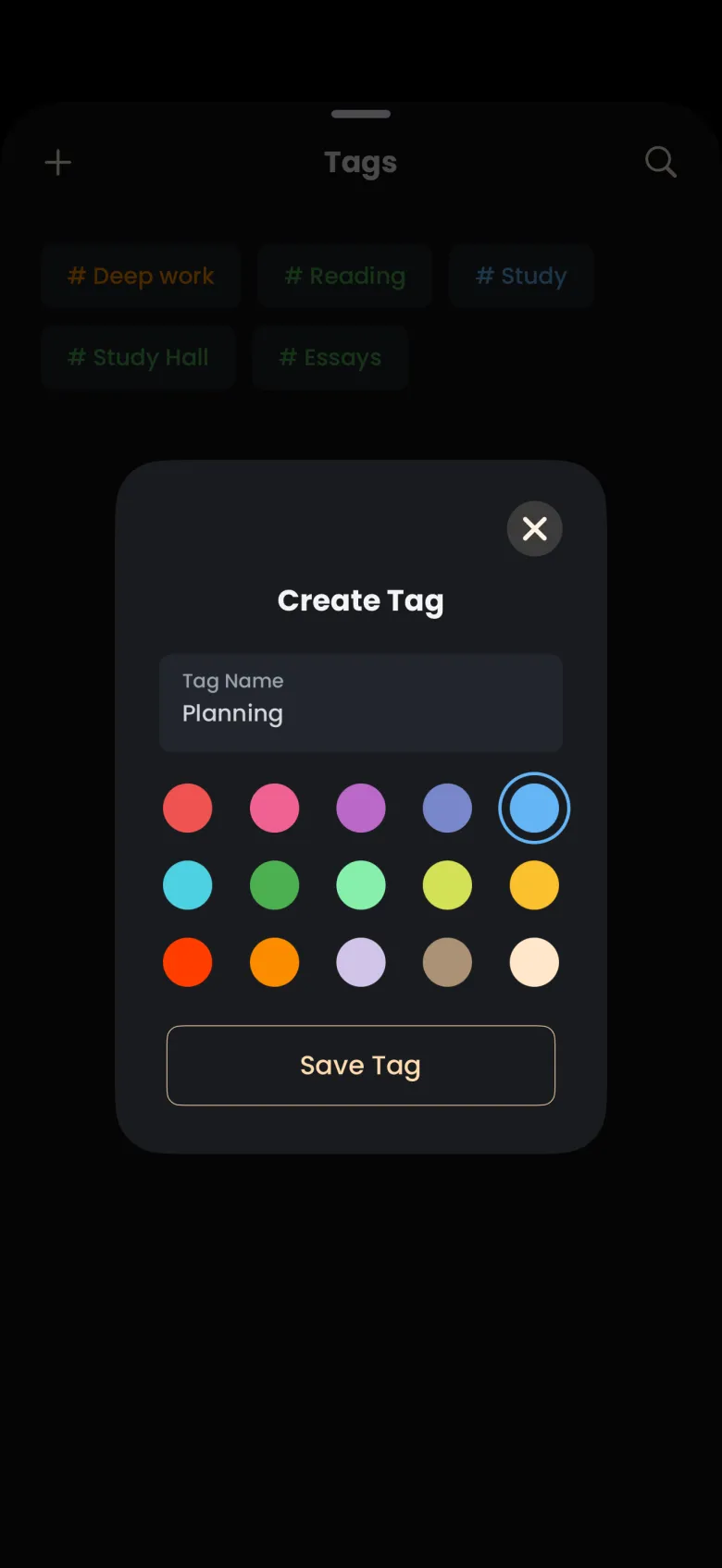
- Tap the plus. The Create Tag window opens.
- Type a name in Tag Name and pick one of the 15 colors. The color you choose is ringed.
- Tap Save Tag. The window closes and the button under the timer now shows your tag in its color.
To switch tags later, tap the tag button again and pick another one from the list; the tag you choose gets a checkmark and the sheet closes. You can also set a tag while a session is running: tap the hourglass to peek, then tap Set a Tag.
How do I rename a tag or change its color?
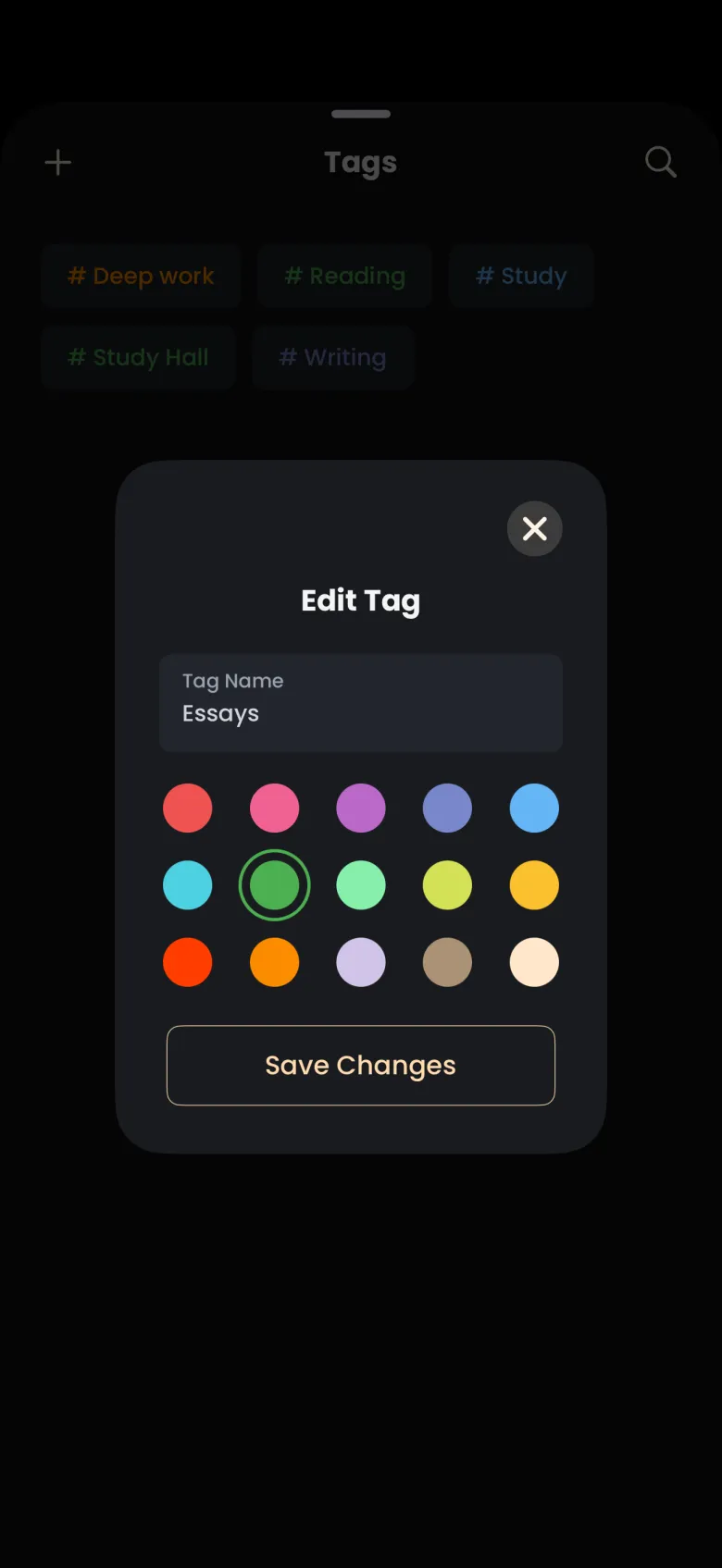
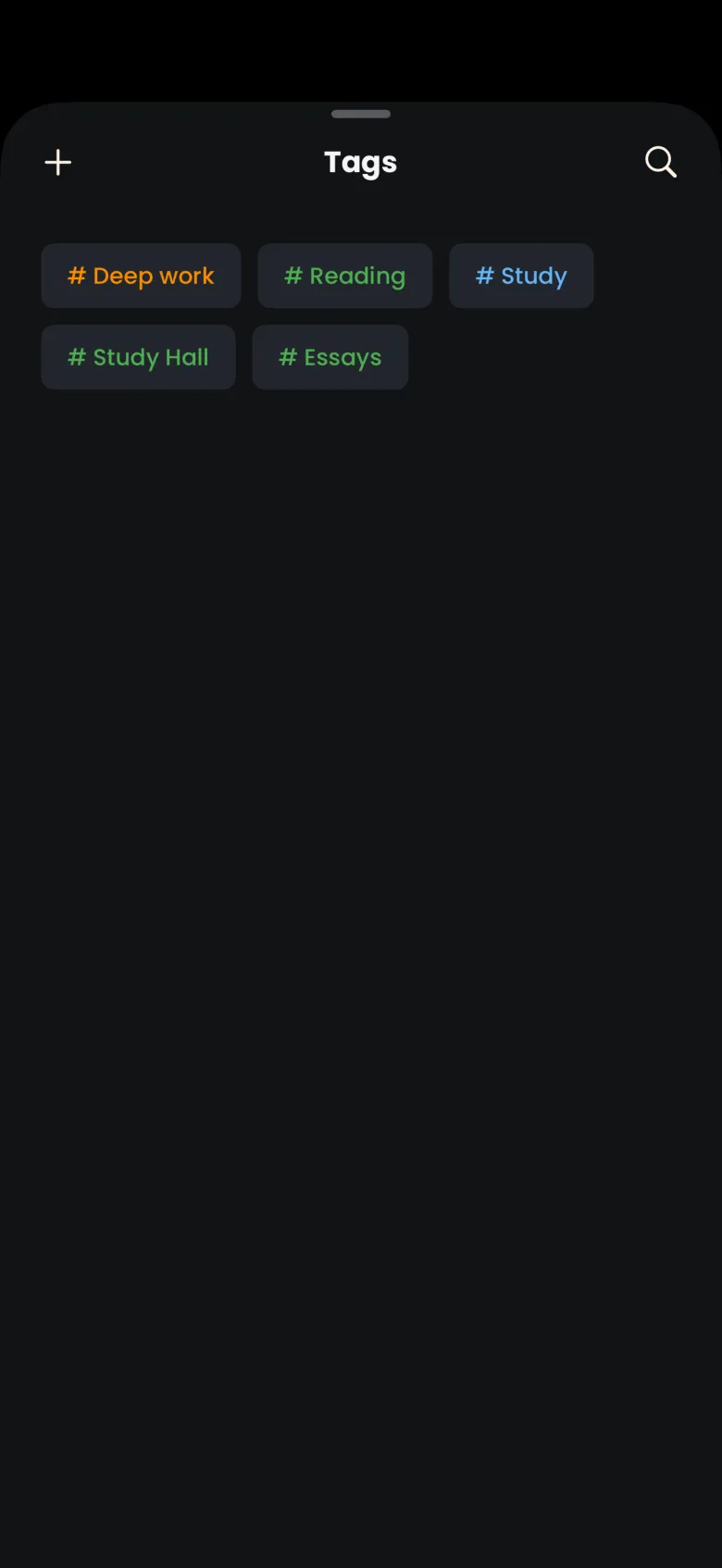
Open your Profile and go to Tags. Tap the tag you want to change, edit its name or pick a different color, and save. Your past sessions keep the tag, so the label and color change everywhere that tag appears, including the tag button on the Focus tab.
- Tap More in the tab bar, then Profile.
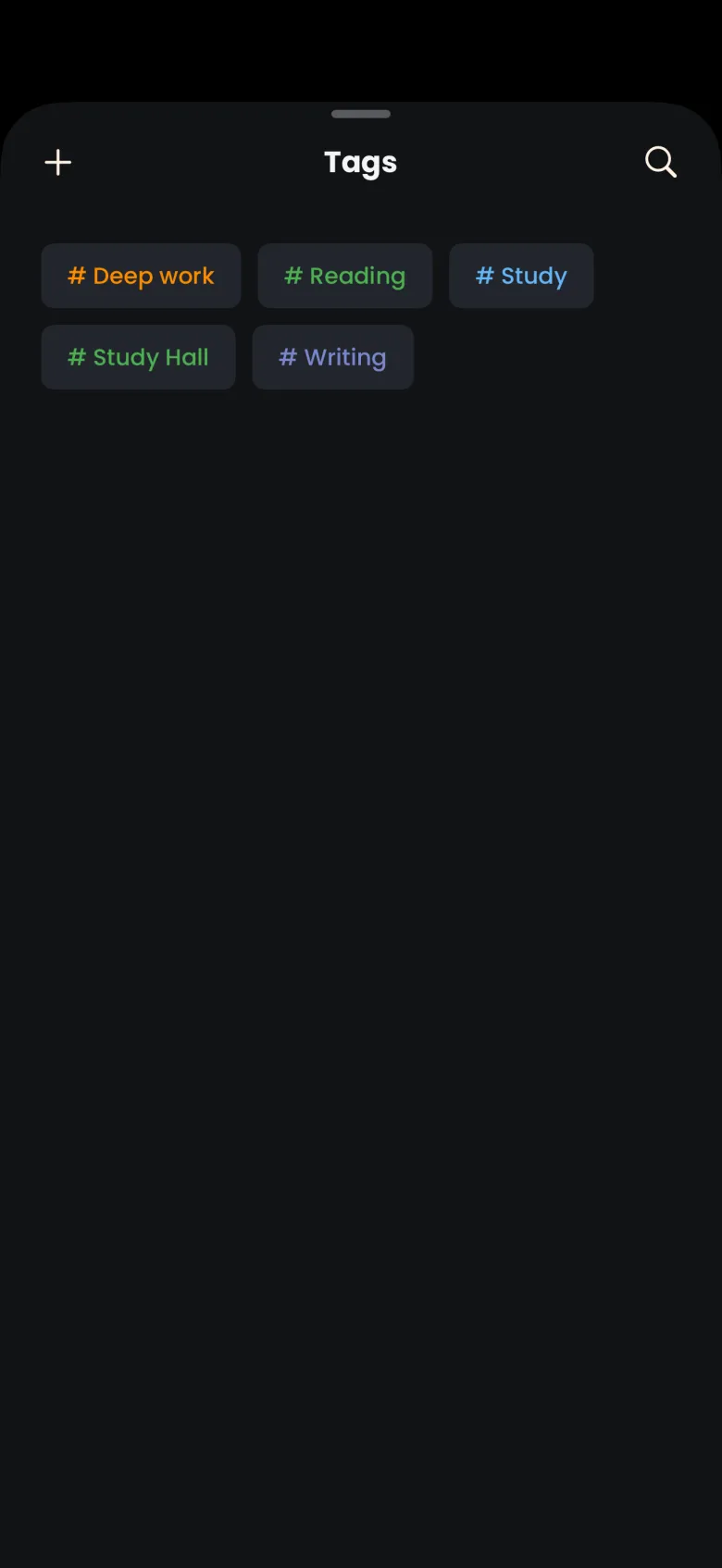
- Tap Tags in the Profile list. A sheet opens with your tags as colored chips.
- Tap the tag you want to change. The Edit Tag window opens with its current name and color.
- Change the name, pick a new color, and tap Save Changes.
Where do I see how I spent my time by tag?
Each tag you use is recorded with its sessions, and the tag usage breakdown in History shows how your focus time divides across tags by day, week, month and year. History is part of Catch the Ghost Pro, while creating and using tags is free. You also see your tag on the catch screen at the end of a session, at the right of the reveal’s buttons.