Collecting ghosts
Sharing an apparition
Turn a quote you have caught into an image card. Pick a template, a shape and a text size, preview the card, then send it to a friend or save it to your photos.
- Available on iPhone and Android
How do I share an apparition?
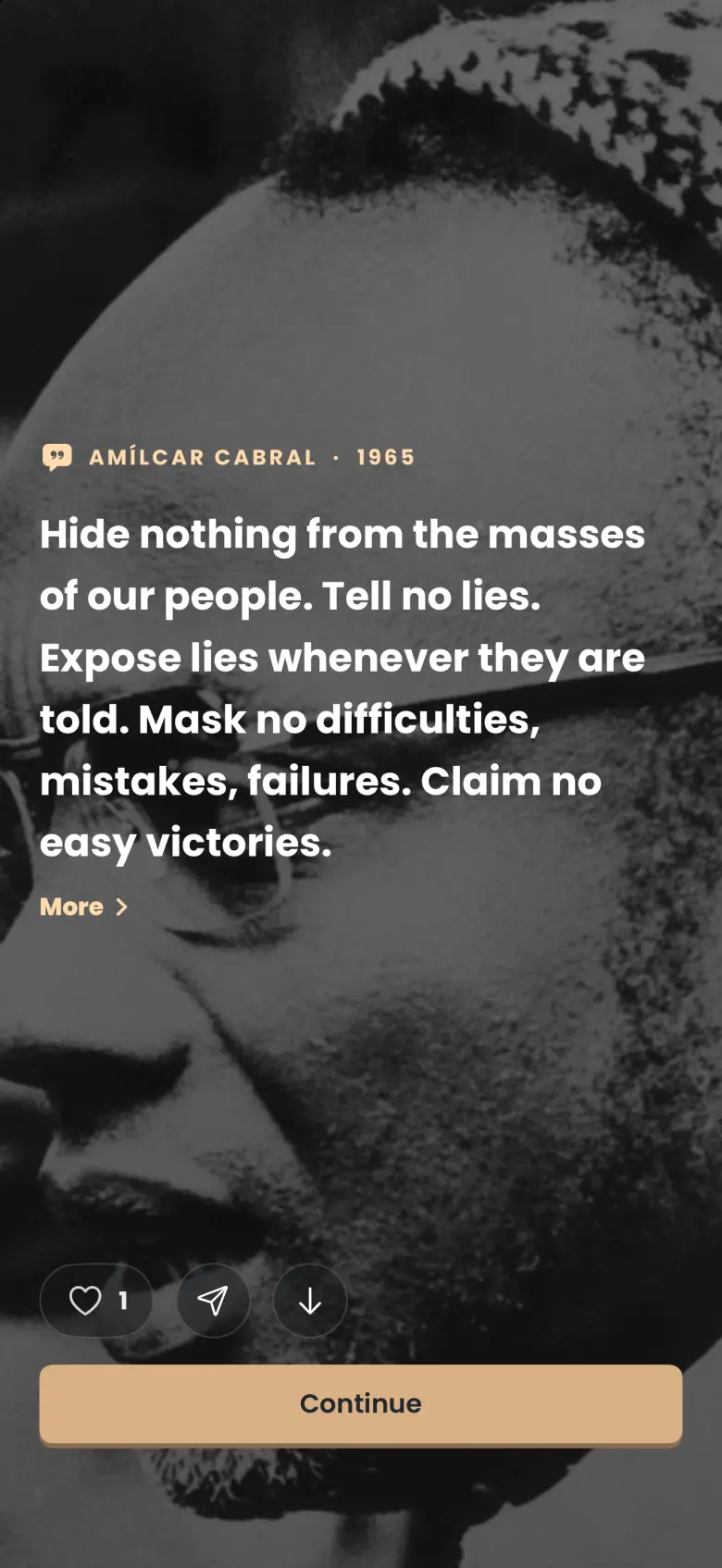
Tap the share button on the reveal, or on the apparition’s own page, to open the Share editor. The editor shows a live preview of a card made from the quote and its picture. Adjust the card, tap Preview, and then Share to send it with your phone’s own share sheet. On iPhone the share button is a paper plane; on Android it is the standard share icon.
- On the reveal after a catch, tap the share button beside the heart and the download arrow.
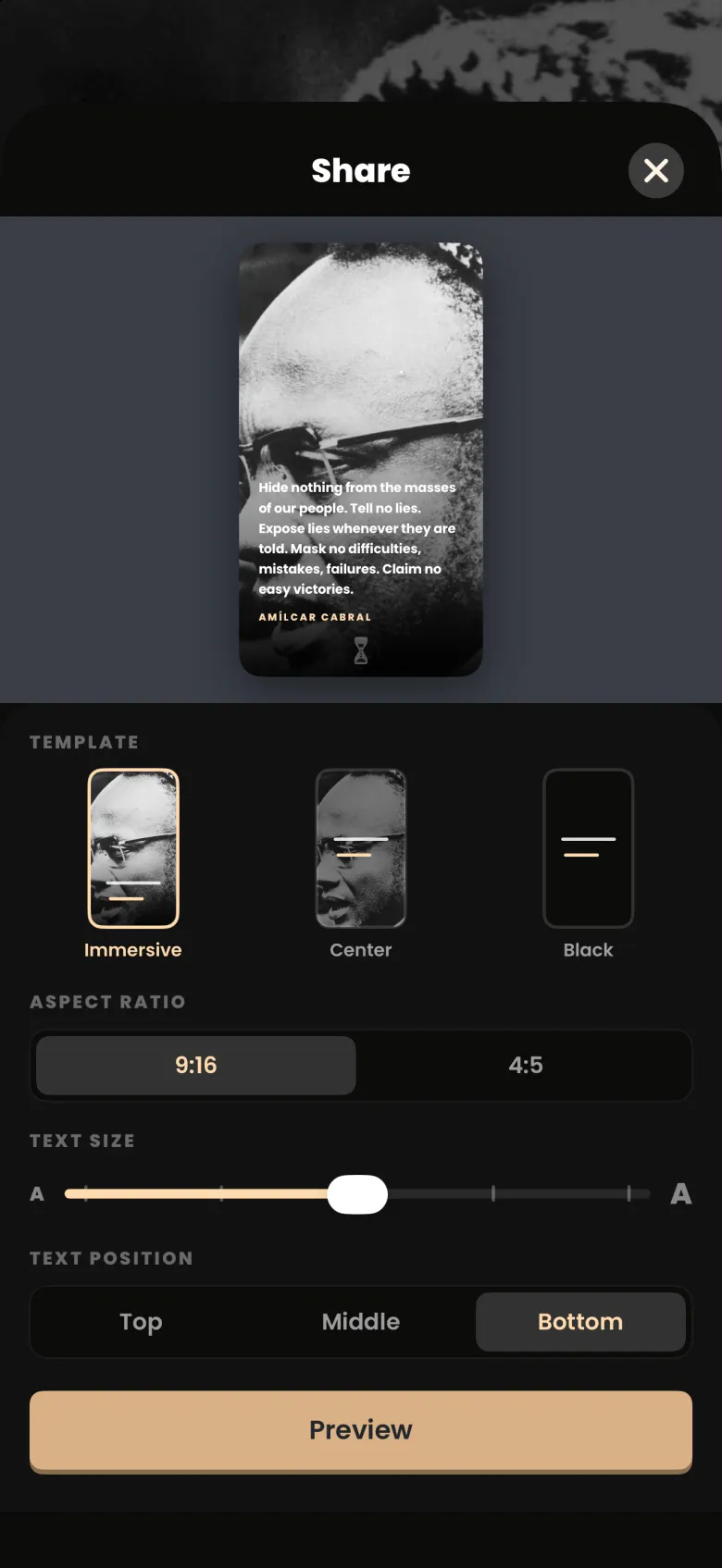
- In the Share editor, choose a template, an aspect ratio, a text size and, where offered, a text position.
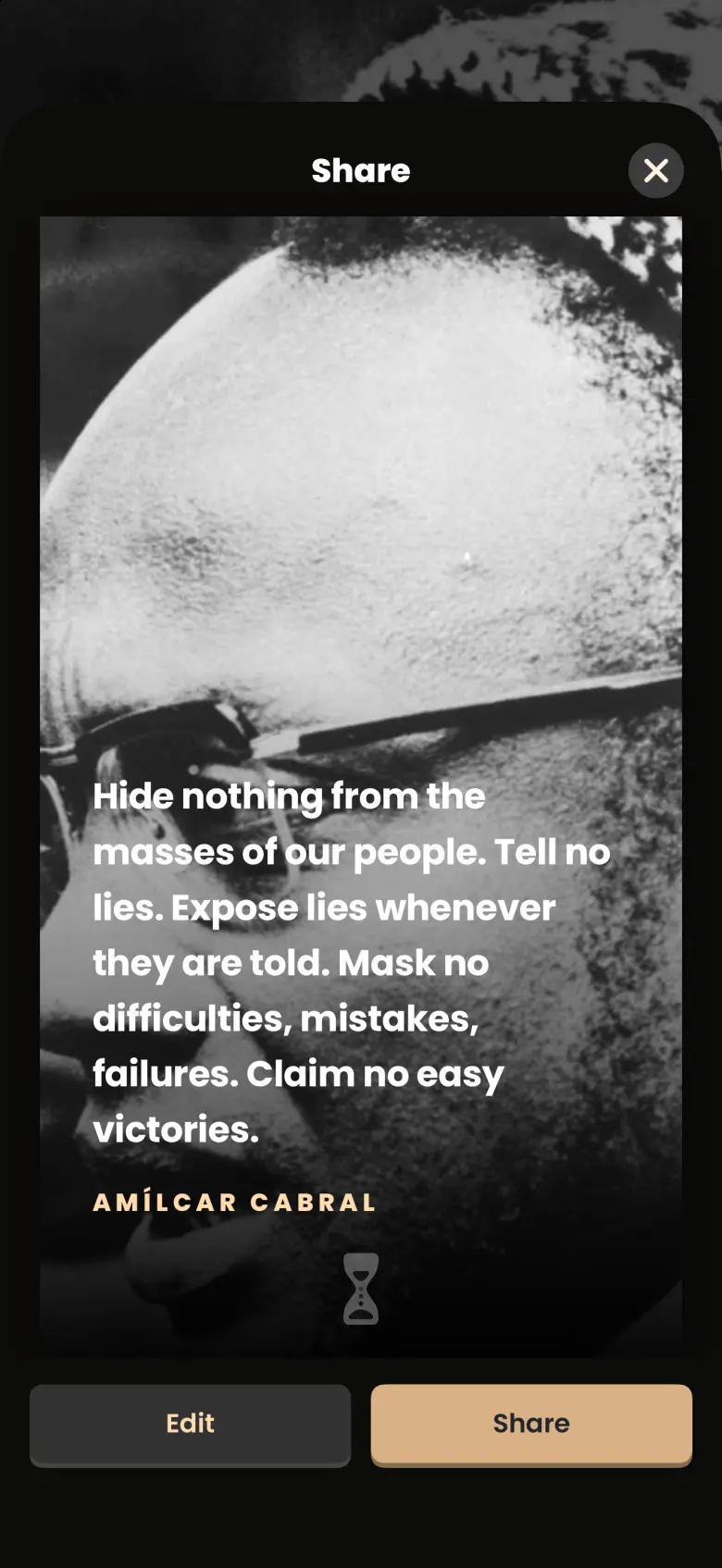
- Tap Preview to see the card at full size. Tap Edit to go back and change it, or Share to continue.
- Choose where to send it in your phone’s share sheet. On Android the share sheet is the system chooser.
What can I change on the card?
You can change the template, the shape, the size of the text and where it sits. The three templates are Immersive, which puts the quote over the whole picture, Center, and Black, which uses a plain black card. The aspect ratio is either 9:16 or 4:5, and the preview reshapes to match. The text size is a slider from small to large.
Text position, with Top, Middle and Bottom, is offered for the Immersive template; choosing Center hides it and recentres the quote. The card carries the quote, the ghost’s name in gold and a small hourglass mark.
How do I save the image instead of sharing it?
Use the download button, the arrow beside the share button on the reveal. It saves the image to your photos. If your phone has not given the app access to Photos, a message tells you that Photos access is off and where to turn it on in Settings.