Focus sessions
Shallow Focus
Shallow Focus is a flexible timer for work that does not need a locked-in session. It catches no apparition, but it pays a session reward and keeps your streak going.
- Available on iPhone and Android
Shallow Focus is the lighter of the two focus modes on iPhone and Android. You pick a duration of 10, 25, 45 or 60 minutes, and when the timer ends you earn a session reward in XP and coins. It catches nothing: no apparition is revealed, and no ghost moves forward. A finished Shallow session still counts toward your streak. For a chapter of a ghost’s life, use Deep Focus.
What is the difference between Shallow Focus and Deep Focus?
Deep Focus reveals one apparition through the digital hourglass and puts that apparition at stake if you stop early or stay away too long. Shallow Focus does neither. It is a plain countdown for work that is flexible, such as email, tidying up or reading, and the settings sheet describes it as flexible but unable to catch ghosts. Because there is no apparition, there is none to lose.
The trade is in what you collect. A Shallow session adds XP and coins and extends your streak, but it never adds to a ghost’s chapter count, so your In Progress row stays exactly as it was.
How do I start a Shallow Focus session?
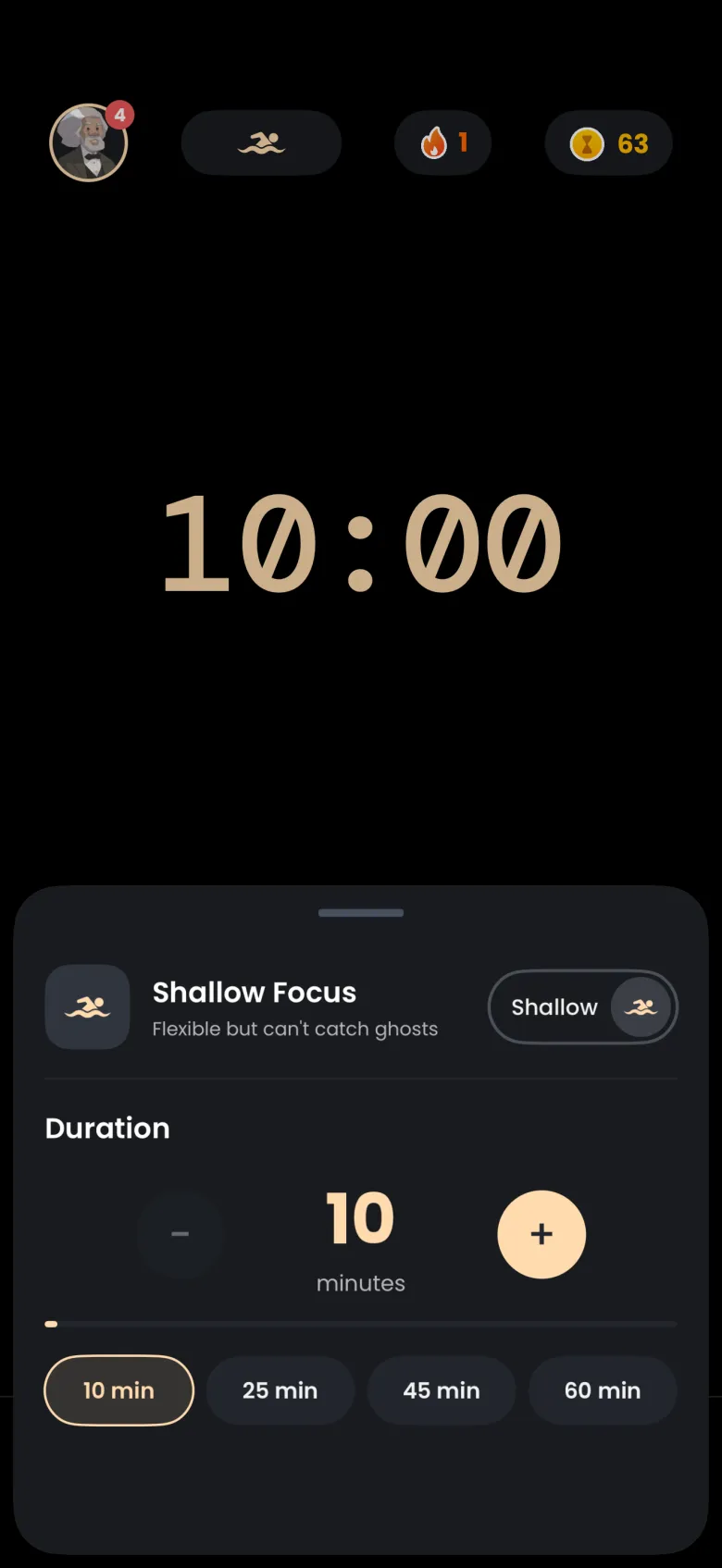
Open the focus settings sheet from the pill at the top of the Focus tab, switch the capsule to Shallow Focus, and choose a duration. The sheet shrinks to only the description and the duration, because categories, stakes and grace periods belong to Deep Focus only. The Focus tab then shows your chosen time on the idle face.
- On the Focus tab, tap the pill at the top to open the settings sheet.
- Flip the capsule to Shallow Focus.
- Tap a preset duration: 10, 25, 45 or 60 minutes.
- Close the sheet and tap the Shallow Focus button to start.

What happens while a Shallow session runs?
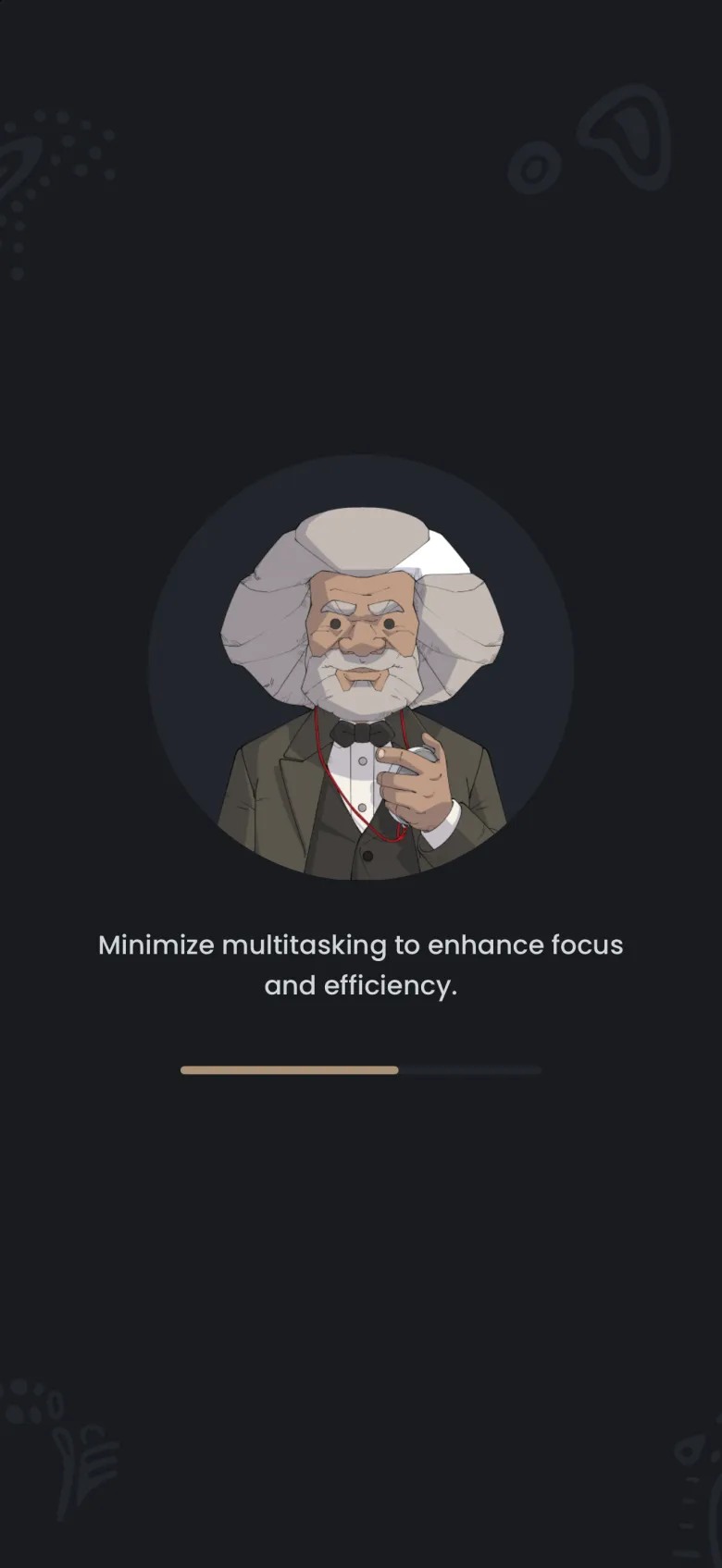
A short Get Ready screen opens first, with your guide and a focus tip, and then the countdown begins. While it runs you can still set a tag to label the work and play ambience through the headphones button at the top right. There is no hourglass to watch, because there is no apparition to reveal.
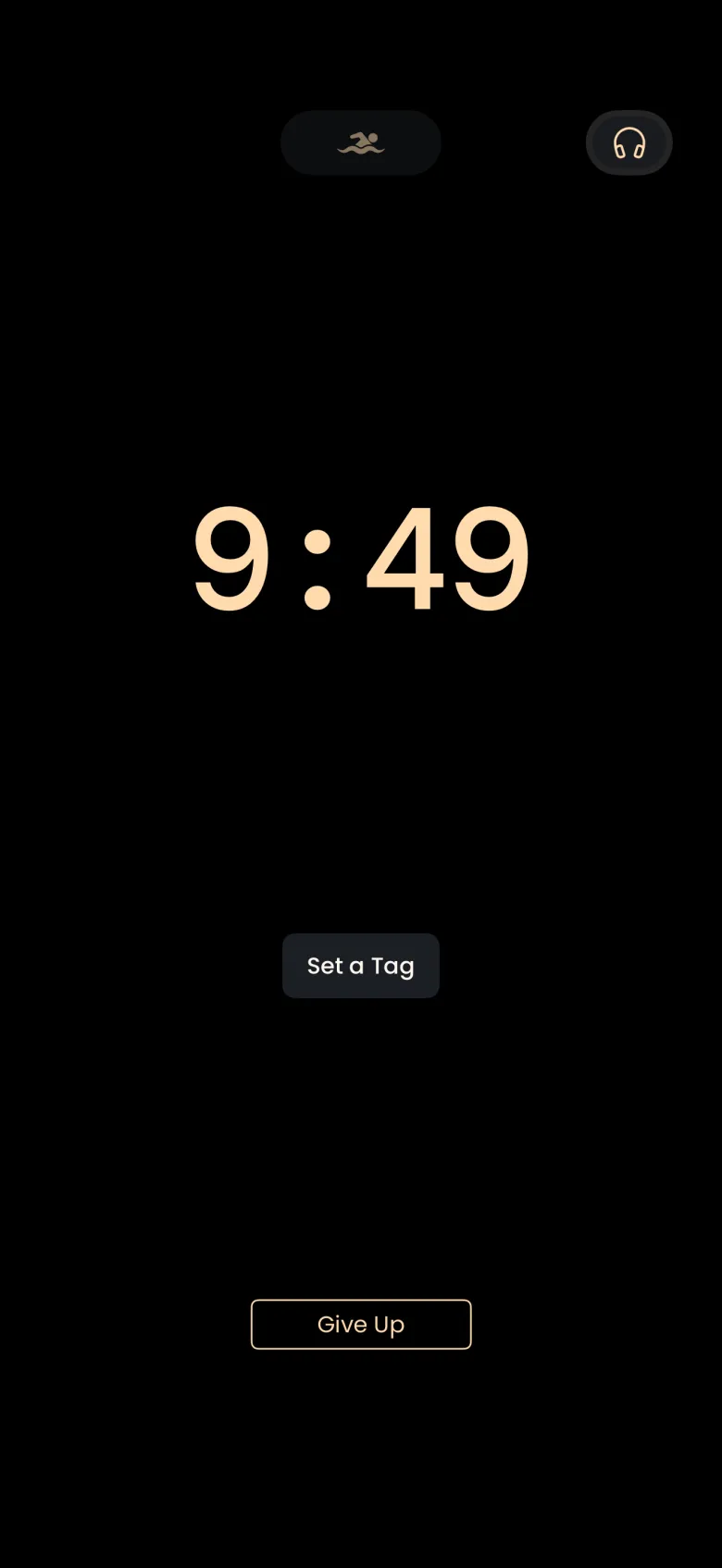
See Tags for labelling sessions and Ambience and breaks for the sounds.
What do I earn from a Shallow Focus session?
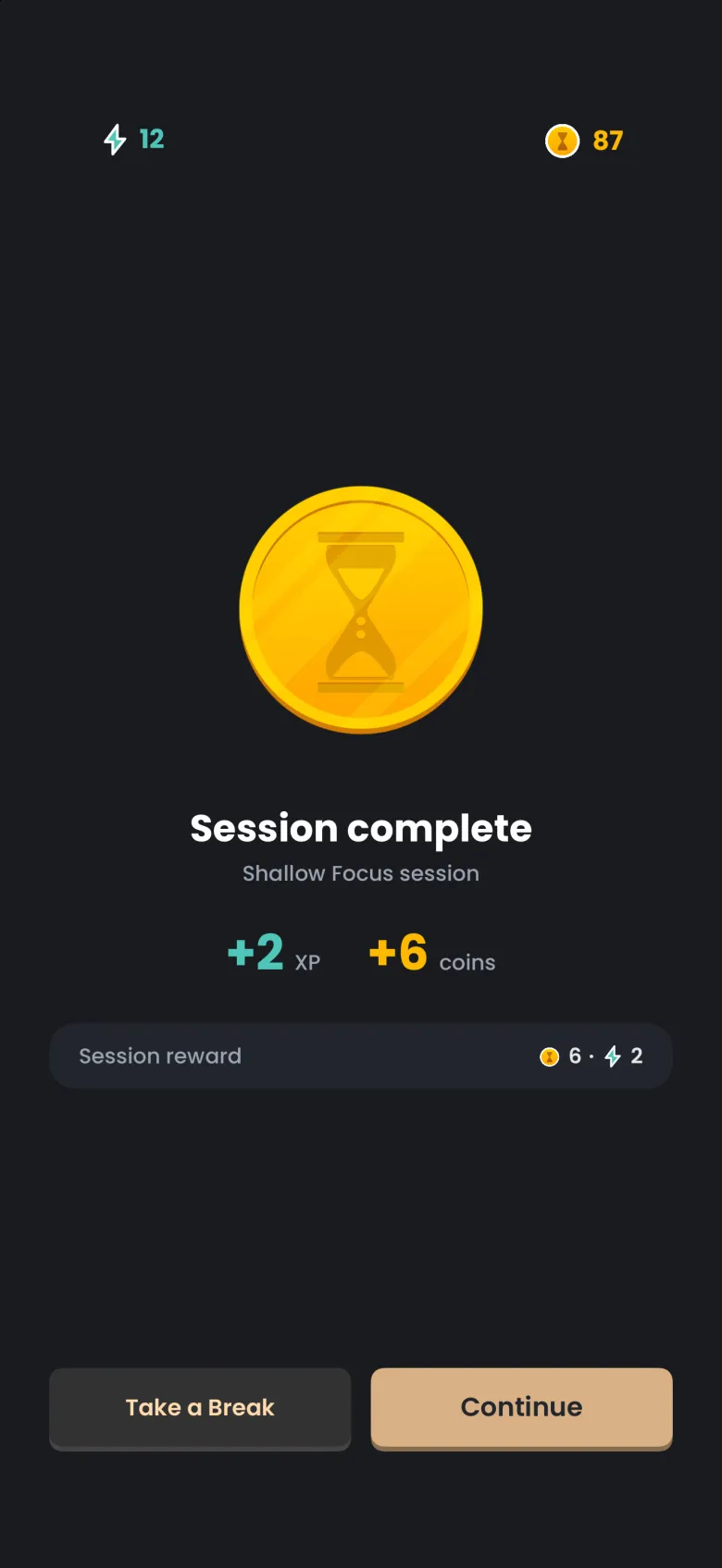
You earn a session reward of XP and coins, and nothing else. The rewards screen is headed Session complete and shows a single Session reward row, with none of the multipliers a Deep Focus catch adds. A 10 minute session paid 2 XP and 6 coins in the screen below. Your streak counts the day once you finish a complete session.
A session you stop before the timer ends does not count toward your streak, so if it was your only attempt that day, the day is missed. How streaks work has the full rules.
Where does a Shallow session show up afterwards?
If you have Catch the Ghost Pro, it appears in your History, listed under the day it started, with a swimmer icon where a Deep Focus session would show an apparition thumbnail, and with any tag you set. See History for how the day view reads.