Account and settings
Profile and settings
Your Profile holds your name, guide, country and daily goal. Settings holds sound, notifications, suggestions, support links, log out and delete account.
- Available on iPhone and Android
Open the More tab and choose Profile to edit who you are in the app. Tap the gear at the top right of Profile to reach Settings. Both work the same on iPhone and Android, and everything on this page is free.
Where do I find my Profile and Settings?
Profile is under the More tab at the right end of the tab bar, and Settings opens from a gear on Profile. Tapping More slides up a menu with Share & Earn, Leaderboard, History, Universe and Profile. Profile is a screen of its own, not a tab.
At the top of Profile you see your avatar with a small pencil badge, your name and username, and your email address, followed by three tiles for Streak, Total XP and Coins. Below those are rows for Liked Quotes, Tags, Change Username, Change Email Address, Change Password, My Leaderboard Country, Choose your Guide and Daily Focus Goal, with your app version at the very bottom. The tiles are for reading only.
How do I change my username, avatar, email or password?
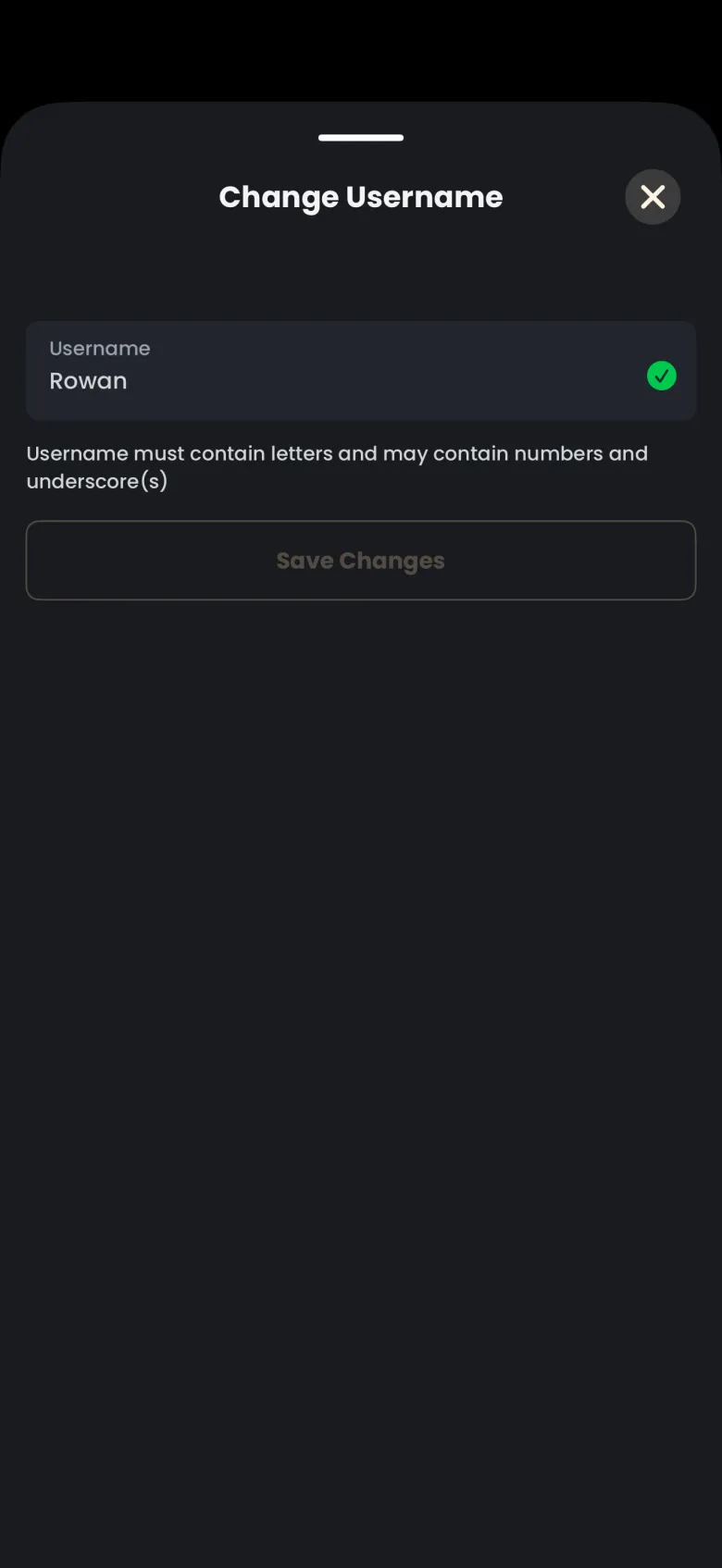
Each of these is a row on Profile that opens its own sheet, and nothing changes until you confirm. Change Username shows your current name and the rule for a new one: letters are required, and numbers and underscores are allowed. Save Changes stays dimmed until the name differs from your current one.
- Tap More, then Profile.
- Tap the row you want: Change Username, Change Email Address or Change Password.
- Follow the sheet, then tap its confirm button. Close a sheet with the X at the top right.
To change your avatar, tap the pencil badge on the picture. The app opens your phone’s photo picker, and you choose a photo from your own library; there are no preset avatars.
Change Email Address starts by sending a six digit code to your current address as soon as the sheet opens. You enter that code, then your new address, then a second code sent to the new address. Change Password asks for a new password twice and sends a six digit code to your email to confirm it. If you signed up with Apple or Google, you sign in with that provider rather than a password.
How do I change my leaderboard country?
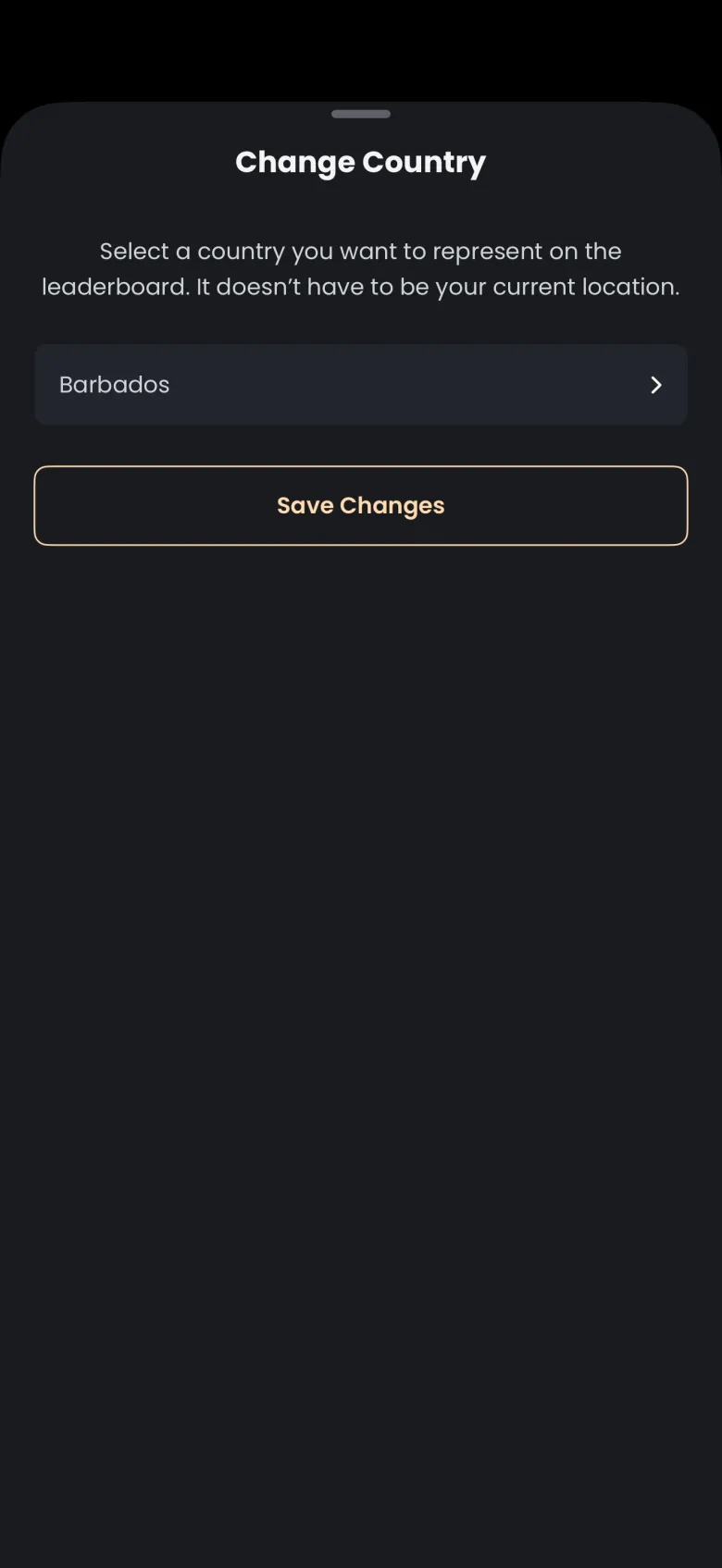
Open My Leaderboard Country on Profile, pick a country, and tap Save Changes. The country is the flag you represent on the weekly leaderboard, and the sheet says it does not have to be where you live. Drag the sheet down from its top edge to leave without saving. The leaderboard article shows where the flag appears.
How do I change my daily focus goal?
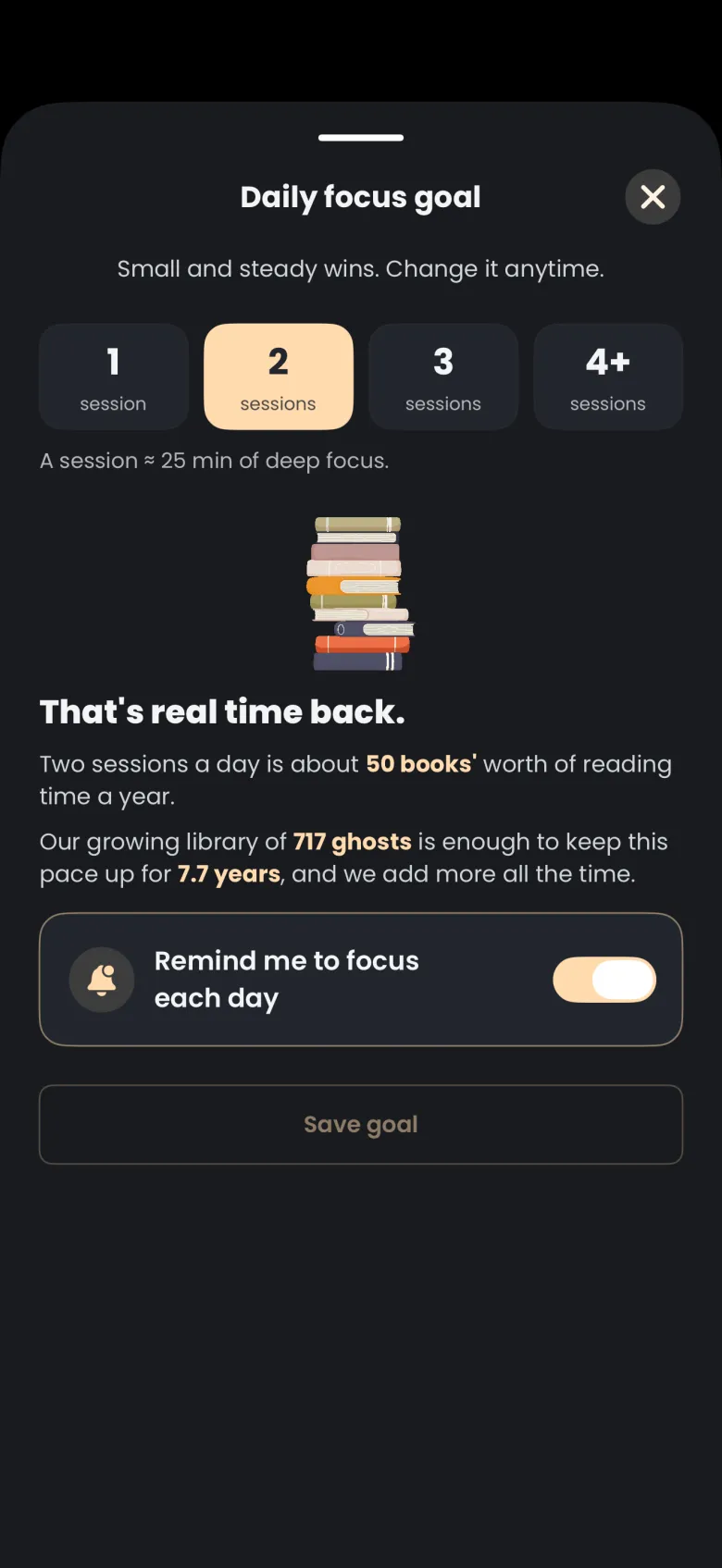
Open Daily Focus Goal on Profile, choose 1, 2, 3 or 4 or more sessions, and tap Save goal. The sheet repeats the picture from setup of what that pace adds up to, and it holds the Remind me to focus each day switch, so the same screen controls your reminder. Save goal stays dimmed until you change something, and the X at the top right closes the sheet without saving.
Your daily goal sets the target for the goal ring on your guide’s sheet. The notifications article explains the reminder.
What is in Settings?
Settings is a single list, and each row opens its own screen or link. It opens full screen with an X at the top right. Top to bottom, the first group has Manage Subscriptions, Restore Purchases, Notifications, Sound Effects, Leave a Suggestion, Rate the App and Cancel a Subscription. The second group has Contact Support, Help Center, FAQ, Terms and Conditions and Privacy Policy, and the list ends with Log Out and Delete Account.
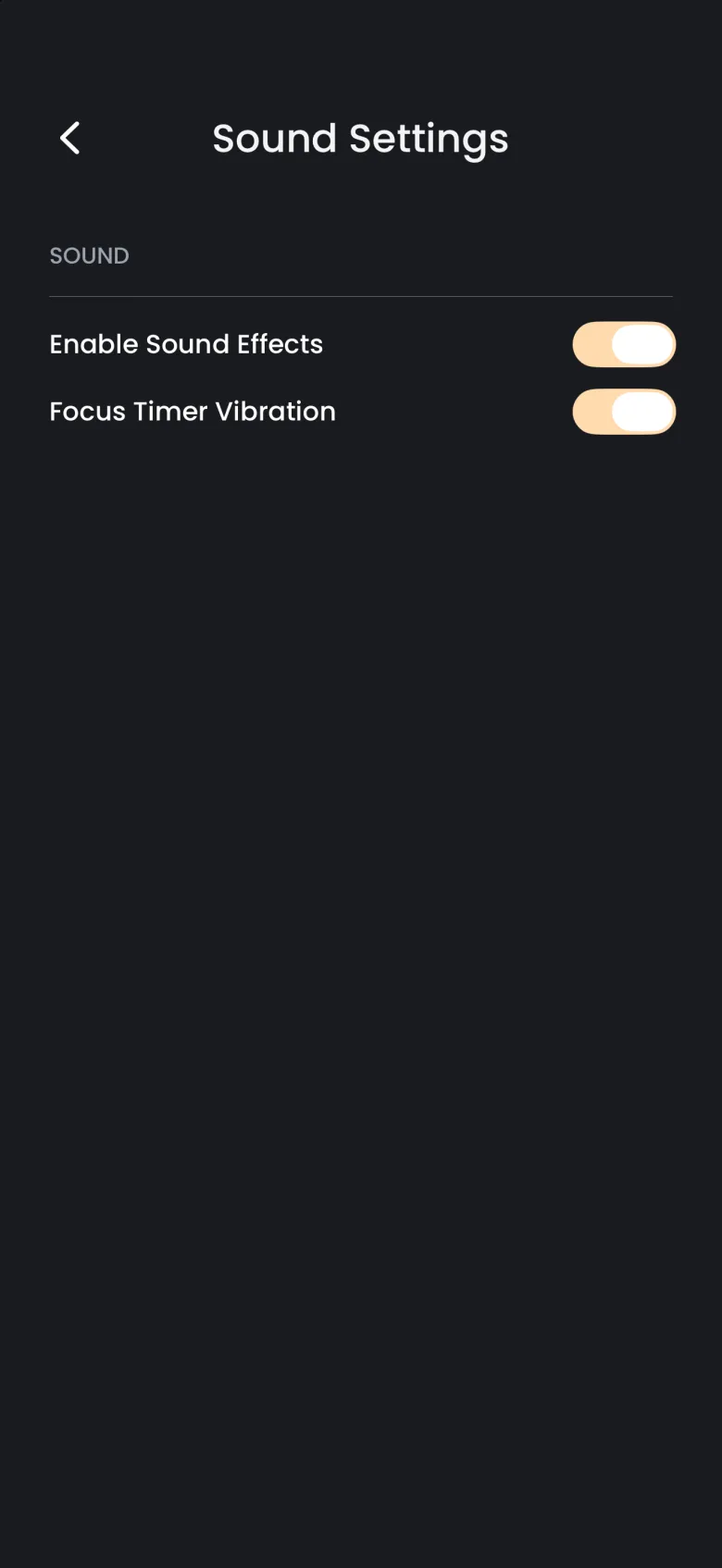
Manage Subscriptions shows your plan; the Catch the Ghost Pro article explains what Pro adds, and prices always come from your store. Notifications has its own article, linked below. Sound Effects opens Sound Settings, where Enable Sound Effects and Focus Timer Vibration are two separate switches, both on by default.
How do I suggest a feature or a ghost?
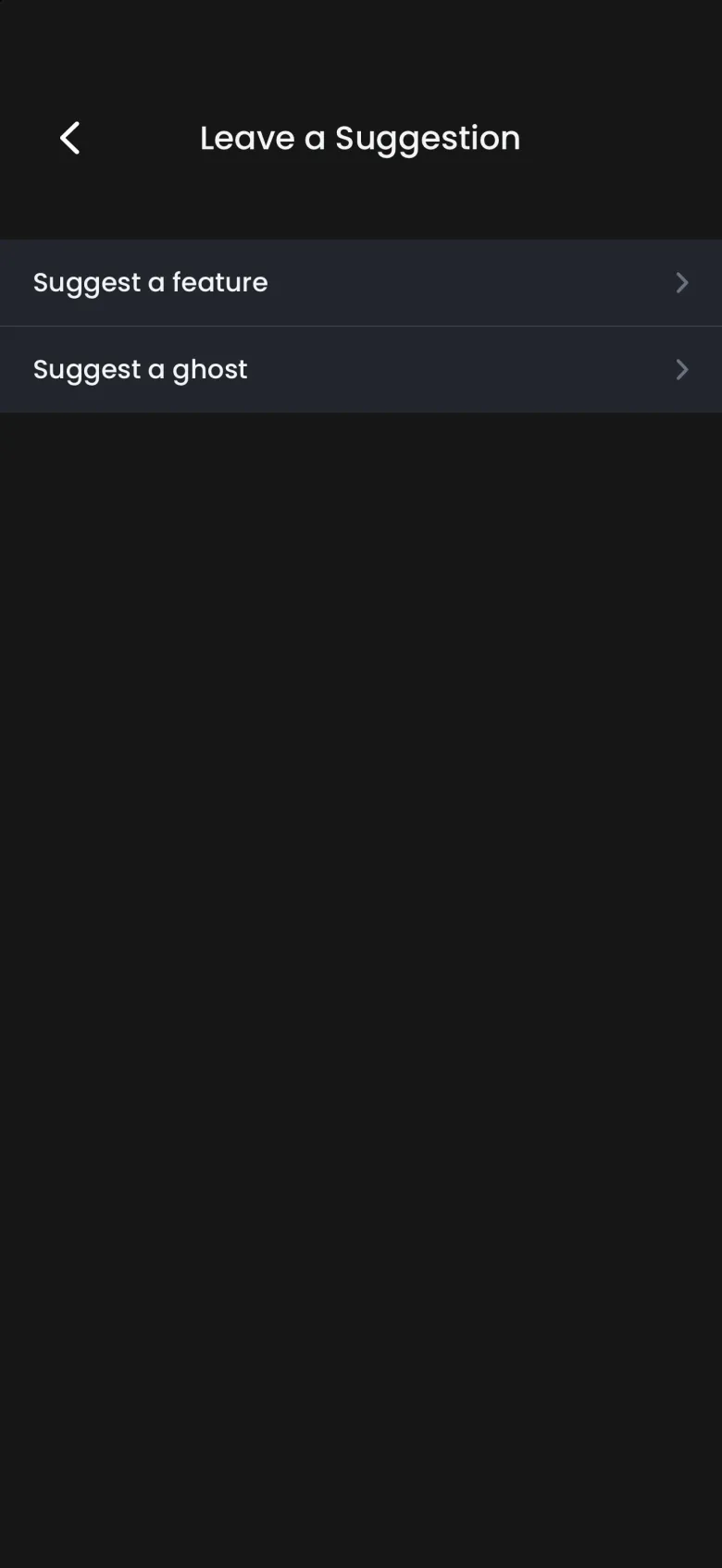
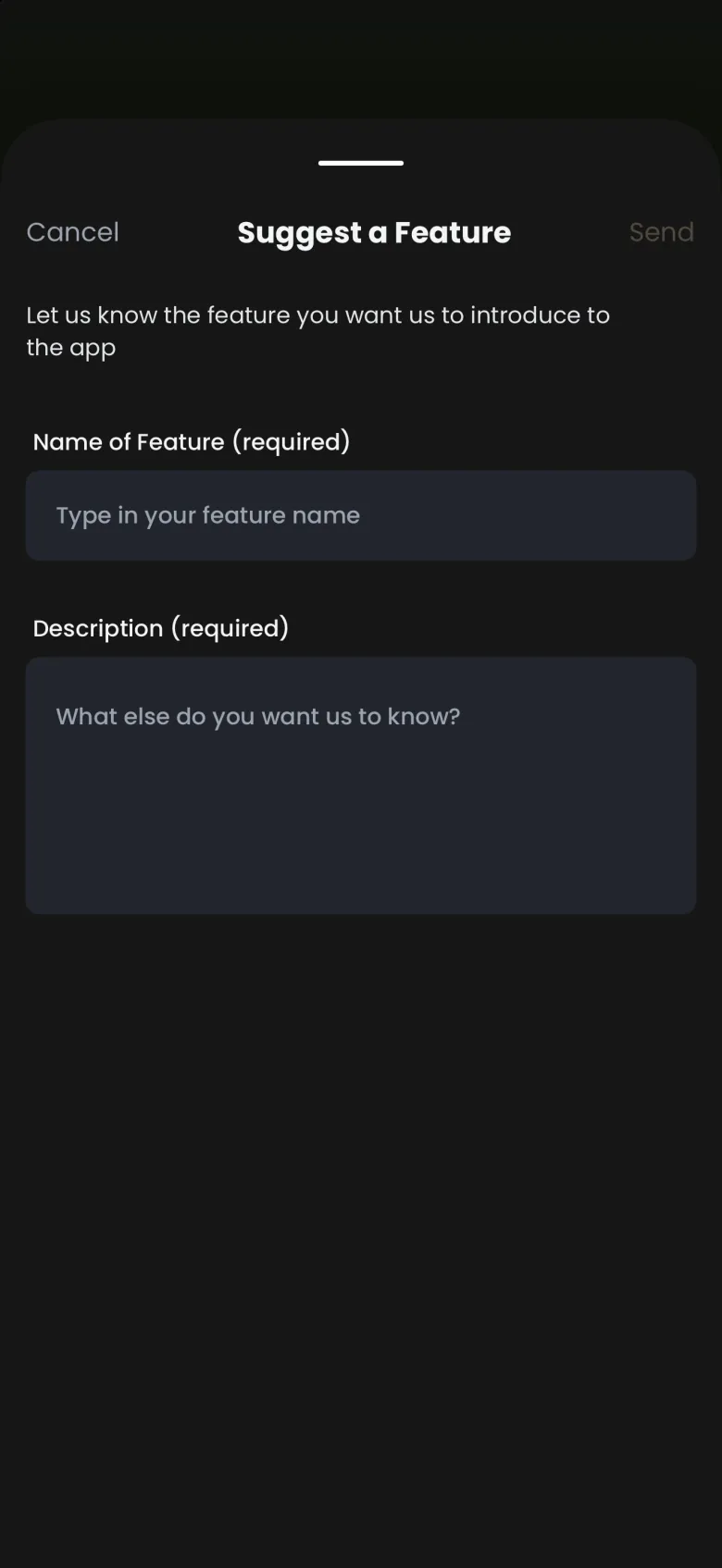
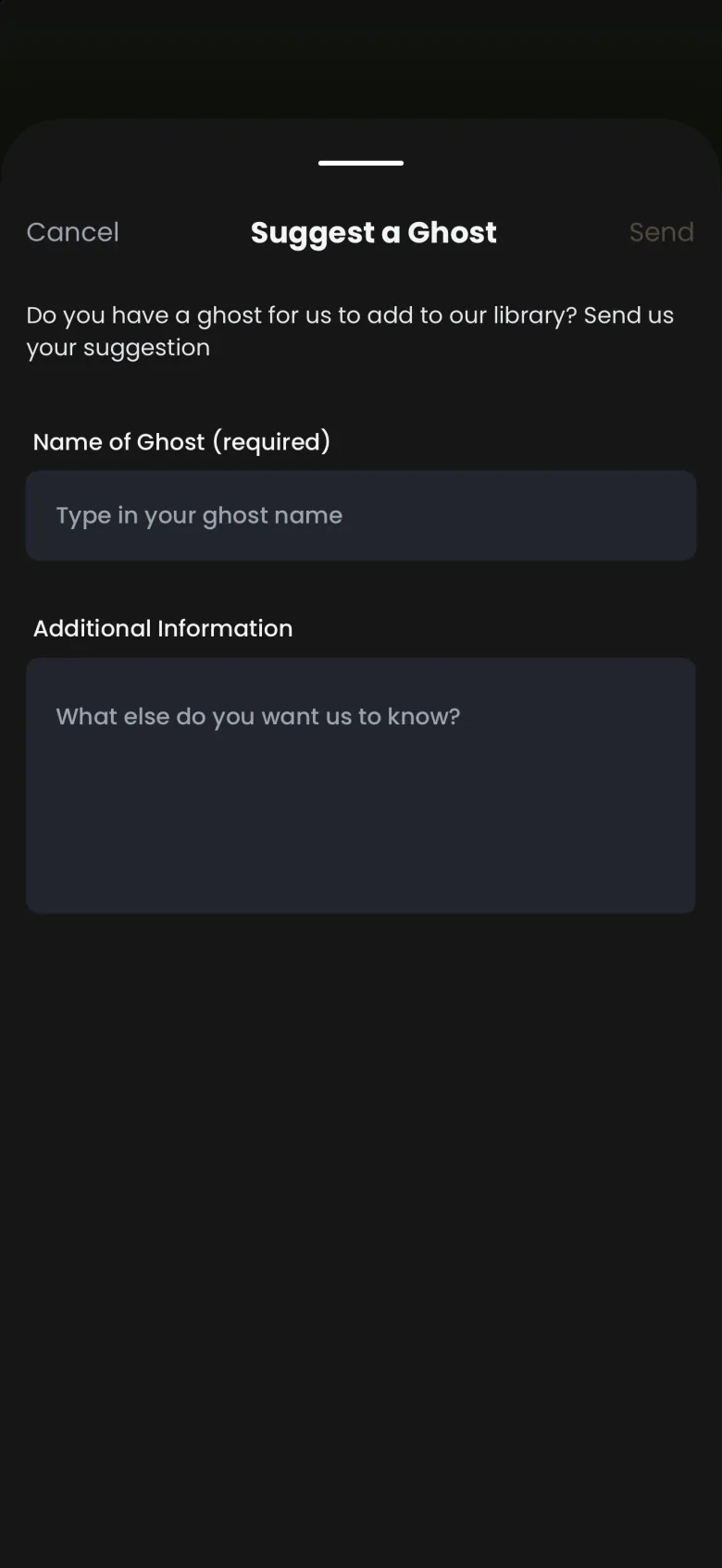
Open Leave a Suggestion in Settings and choose Suggest a feature or Suggest a ghost. Both send your idea to the team. A feature needs a name and a description, and a ghost needs only a name, with an optional box for anything else you want us to know.
- Tap More, then Profile, then the gear.
- Tap Leave a Suggestion, then the kind of suggestion.
- Fill in the required fields. Send, at the top right, stays dimmed until they are complete.
- Tap Send.
If you tap Cancel after typing, the app asks whether to stay on the page or leave, so a half written idea is not lost by accident.
Where are the Help Center, the FAQ and support?
The Help Center, the FAQ and Contact Support are all rows in the second group of Settings. Help Center opens this site’s Help section in your browser, and FAQ opens the frequently asked questions page. Contact Support opens a message addressed to support, already filled in with your app and device details, so you do not need to describe your setup.
Each browser row returns you to the app afterward: on iPhone, tap the back link at the top left. On Android these pages open in Chrome, and the system Back gesture returns you to the app. Contact Support needs a mail app set up on your phone.
How do I log out or delete my account?
Log Out and Delete Account are the last two rows of Settings. Log Out asks you to confirm and signs you out. Your ghosts, coins and streak stay on your account, and signing back in brings them back.
Delete Account removes your account and all the data attached to it, and it cannot be undone.
- Open Settings and scroll to the bottom.
- Tap Delete Account.
- Enter your password. If you signed up with Apple or Google, type Delete Me instead.
- Tap Delete Forever.
- Confirm on the prompt that asks whether you are sure.